"/><stop offset="1" stop-color="rgb(255, 100, 165)"/></linearGradient></defs><g d="M 0 0 L 60 0 L 60 60 L 0 60 Z M 9 60 C 4.029 60 0 55.971 0 51 L 0 9 C 0 4.029 4.029 0 9 0 L 51 0 C 55.971 0 60 4.029 60 9 L 60 51 C 60 55.971 55.971 60 51 60 Z M 42.974 11.215 C 43.145 11.215 43.331 11.198 43.535 11.164 C 43.773 11.096 44.011 10.942 44.249 10.704 C 44.385 10.568 44.538 10.5 44.708 10.5 C 44.98 10.5 45.184 10.653 45.319 10.959 L 49.347 18.412 C 49.449 18.616 49.5 18.77 49.5 18.872 C 49.5 19.144 49.364 19.348 49.092 19.484 L 46.951 20.658 C 46.747 20.76 46.577 20.811 46.441 20.811 C 46.237 20.811 46.05 20.658 45.88 20.352 L 45.727 20.046 C 44.878 18.344 43.654 17.136 42.057 16.422 C 40.46 15.707 38.624 15.349 36.551 15.349 L 34.053 15.349 L 34.053 41.588 C 34.053 42.949 34.308 44.106 34.818 45.059 C 35.327 45.978 36.228 46.437 37.519 46.437 L 37.876 46.437 C 38.386 46.437 38.641 46.692 38.641 47.203 L 38.641 48.734 C 38.641 49.245 38.386 49.5 37.876 49.5 L 22.174 49.5 C 21.664 49.5 21.41 49.245 21.41 48.734 L 21.41 47.203 C 21.41 46.692 21.665 46.437 22.175 46.437 L 22.481 46.437 C 23.772 46.437 24.673 45.978 25.182 45.059 C 25.692 44.106 25.947 42.949 25.947 41.588 L 25.947 15.349 L 23.449 15.349 C 21.376 15.349 19.541 15.707 17.943 16.421 C 16.346 17.136 15.122 18.344 14.273 20.046 L 14.12 20.352 C 13.95 20.658 13.763 20.812 13.559 20.812 C 13.423 20.812 13.253 20.761 13.049 20.659 L 10.908 19.484 C 10.636 19.348 10.5 19.144 10.5 18.872 C 10.5 18.77 10.551 18.616 10.653 18.412 L 14.68 10.959 C 14.85 10.653 15.054 10.5 15.292 10.5 C 15.462 10.5 15.615 10.568 15.751 10.704 C 15.989 10.943 16.21 11.096 16.414 11.164 C 16.651 11.197 16.855 11.215 17.026 11.215 Z" fill="transparent" height="60px" id="wnIU_RgRP" width="60px"><path d="M 0 0 L 60 0 L 60 60 L 0 60 Z" fill="transparent" height="60px" id="g9vASv_I0" width="60px"/><path d="M 9 60 C 4.029 60 0 55.971 0 51 L 0 9 C 0 4.029 4.029 0 9 0 L 51 0 C 55.971 0 60 4.029 60 9 L 60 51 C 60 55.971 55.971 60 51 60 Z" fill="rgb(254, 254, 254)" height="60px" id="Zi9UWh_Wu" width="60px"/><g d="M 32.474 0.715 C 32.645 0.715 32.831 0.698 33.035 0.664 C 33.273 0.596 33.511 0.442 33.749 0.204 C 33.885 0.068 34.038 0 34.208 0 C 34.48 0 34.684 0.153 34.819 0.459 L 38.847 7.912 C 38.949 8.116 39 8.27 39 8.372 C 39 8.644 38.864 8.848 38.592 8.984 L 36.451 10.158 C 36.247 10.26 36.077 10.311 35.941 10.311 C 35.737 10.311 35.55 10.158 35.38 9.852 L 35.227 9.546 C 34.378 7.844 33.154 6.636 31.557 5.922 C 29.96 5.207 28.124 4.849 26.051 4.849 L 23.553 4.849 L 23.553 31.088 C 23.553 32.449 23.808 33.606 24.318 34.559 C 24.827 35.478 25.728 35.937 27.019 35.937 L 27.376 35.937 C 27.886 35.937 28.141 36.192 28.141 36.703 L 28.141 38.234 C 28.141 38.745 27.886 39 27.376 39 L 11.674 39 C 11.164 39 10.91 38.745 10.91 38.234 L 10.91 36.703 C 10.91 36.192 11.165 35.937 11.675 35.937 L 11.981 35.937 C 13.272 35.937 14.173 35.478 14.682 34.559 C 15.192 33.606 15.447 32.449 15.447 31.088 L 15.447 4.849 L 12.949 4.849 C 10.876 4.849 9.041 5.207 7.443 5.921 C 5.846 6.636 4.622 7.844 3.773 9.546 L 3.62 9.852 C 3.45 10.158 3.263 10.312 3.059 10.312 C 2.923 10.312 2.753 10.261 2.549 10.159 L 0.408 8.984 C 0.136 8.848 0 8.644 0 8.372 C 0 8.27 0.051 8.116 0.153 7.912 L 4.18 0.459 C 4.35 0.153 4.554 0 4.792 0 C 4.962 0 5.115 0.068 5.251 0.204 C 5.489 0.443 5.71 0.596 5.914 0.664 C 6.151 0.697 6.355 0.715 6.526 0.715 Z" fill="transparent" height="39px" id="sJZgEX_6w" transform="translate(10.5 10.5)" width="39px"><path d="M 32.474 0.715 C 32.645 0.715 32.831 0.698 33.035 0.664 C 33.273 0.596 33.511 0.442 33.749 0.204 C 33.885 0.068 34.038 0 34.208 0 C 34.48 0 34.684 0.153 34.819 0.459 L 38.847 7.912 C 38.949 8.116 39 8.27 39 8.372 C 39 8.644 38.864 8.848 38.592 8.984 L 36.451 10.158 C 36.247 10.26 36.077 10.311 35.941 10.311 C 35.737 10.311 35.55 10.158 35.38 9.852 L 35.227 9.546 C 34.378 7.844 33.154 6.636 31.557 5.922 C 29.96 5.207 28.124 4.849 26.051 4.849 L 23.553 4.849 L 23.553 31.088 C 23.553 32.449 23.808 33.606 24.318 34.559 C 24.827 35.478 25.728 35.937 27.019 35.937 L 27.376 35.937 C 27.886 35.937 28.141 36.192 28.141 36.703 L 28.141 38.234 C 28.141 38.745 27.886 39 27.376 39 L 11.674 39 C 11.164 39 10.91 38.745 10.91 38.234 L 10.91 36.703 C 10.91 36.192 11.165 35.937 11.675 35.937 L 11.981 35.937 C 13.272 35.937 14.173 35.478 14.682 34.559 C 15.192 33.606 15.447 32.449 15.447 31.088 L 15.447 4.849 L 12.949 4.849 C 10.876 4.849 9.041 5.207 7.443 5.921 C 5.846 6.636 4.622 7.844 3.773 9.546 L 3.62 9.852 C 3.45 10.158 3.263 10.312 3.059 10.312 C 2.923 10.312 2.753 10.261 2.549 10.159 L 0.408 8.984 C 0.136 8.848 0 8.644 0 8.372 C 0 8.27 0.051 8.116 0.153 7.912 L 4.18 0.459 C 4.35 0.153 4.554 0 4.792 0 C 4.962 0 5.115 0.068 5.251 0.204 C 5.489 0.443 5.71 0.596 5.914 0.664 C 6.151 0.697 6.355 0.715 6.526 0.715 Z" fill="url(%23KbpzL6PmD-1929859876-linear-gradient)" height="38.999999999999986px" id="KbpzL6PmD" width="39px"/></g></g></svg>)
"/><stop offset="1" stop-color="rgb(255, 100, 165)"/></linearGradient></defs><g d="M 42.974 11.215 C 43.145 11.215 43.331 11.198 43.535 11.164 C 43.773 11.096 44.011 10.942 44.249 10.704 C 44.385 10.568 44.538 10.5 44.708 10.5 C 44.98 10.5 45.184 10.653 45.319 10.959 L 49.347 18.412 C 49.449 18.616 49.5 18.77 49.5 18.872 C 49.5 19.144 49.364 19.348 49.092 19.484 L 46.951 20.658 C 46.747 20.76 46.577 20.811 46.441 20.811 C 46.237 20.811 46.05 20.658 45.88 20.352 L 45.727 20.046 C 44.878 18.344 43.654 17.136 42.057 16.422 C 40.46 15.707 38.624 15.349 36.551 15.349 L 34.053 15.349 L 34.053 41.588 C 34.053 42.949 34.308 44.106 34.818 45.059 C 35.327 45.978 36.228 46.437 37.519 46.437 L 37.876 46.437 C 38.386 46.437 38.641 46.692 38.641 47.203 L 38.641 48.734 C 38.641 49.245 38.386 49.5 37.876 49.5 L 22.174 49.5 C 21.664 49.5 21.41 49.245 21.41 48.734 L 21.41 47.203 C 21.41 46.692 21.665 46.437 22.175 46.437 L 22.481 46.437 C 23.772 46.437 24.673 45.978 25.182 45.059 C 25.692 44.106 25.947 42.949 25.947 41.588 L 25.947 15.349 L 23.449 15.349 C 21.376 15.349 19.541 15.707 17.943 16.421 C 16.346 17.136 15.122 18.344 14.273 20.046 L 14.12 20.352 C 13.95 20.658 13.763 20.812 13.559 20.812 C 13.423 20.812 13.253 20.761 13.049 20.659 L 10.908 19.484 C 10.636 19.348 10.5 19.144 10.5 18.872 C 10.5 18.77 10.551 18.616 10.653 18.412 L 14.68 10.959 C 14.85 10.653 15.054 10.5 15.292 10.5 C 15.462 10.5 15.615 10.568 15.751 10.704 C 15.989 10.943 16.21 11.096 16.414 11.164 C 16.651 11.197 16.855 11.215 17.026 11.215 Z" fill="transparent" height="60px" id="ENy7giQS1" transform="translate(-9 -9)" width="60px"><path d="M 0 0 L 60 0 L 60 60 L 0 60 Z" display="none" fill="transparent" height="60px" id="ESka27RLq" width="60px"/><path d="M 9 60 C 4.029 60 0 55.971 0 51 L 0 9 C 0 4.029 4.029 0 9 0 L 51 0 C 55.971 0 60 4.029 60 9 L 60 51 C 60 55.971 55.971 60 51 60 Z" display="none" fill="rgb(254, 254, 254)" height="60px" id="GxreBo0Hb" width="60px"/><g d="M 32.474 0.715 C 32.645 0.715 32.831 0.698 33.035 0.664 C 33.273 0.596 33.511 0.442 33.749 0.204 C 33.885 0.068 34.038 0 34.208 0 C 34.48 0 34.684 0.153 34.819 0.459 L 38.847 7.912 C 38.949 8.116 39 8.27 39 8.372 C 39 8.644 38.864 8.848 38.592 8.984 L 36.451 10.158 C 36.247 10.26 36.077 10.311 35.941 10.311 C 35.737 10.311 35.55 10.158 35.38 9.852 L 35.227 9.546 C 34.378 7.844 33.154 6.636 31.557 5.922 C 29.96 5.207 28.124 4.849 26.051 4.849 L 23.553 4.849 L 23.553 31.088 C 23.553 32.449 23.808 33.606 24.318 34.559 C 24.827 35.478 25.728 35.937 27.019 35.937 L 27.376 35.937 C 27.886 35.937 28.141 36.192 28.141 36.703 L 28.141 38.234 C 28.141 38.745 27.886 39 27.376 39 L 11.674 39 C 11.164 39 10.91 38.745 10.91 38.234 L 10.91 36.703 C 10.91 36.192 11.165 35.937 11.675 35.937 L 11.981 35.937 C 13.272 35.937 14.173 35.478 14.682 34.559 C 15.192 33.606 15.447 32.449 15.447 31.088 L 15.447 4.849 L 12.949 4.849 C 10.876 4.849 9.041 5.207 7.443 5.921 C 5.846 6.636 4.622 7.844 3.773 9.546 L 3.62 9.852 C 3.45 10.158 3.263 10.312 3.059 10.312 C 2.923 10.312 2.753 10.261 2.549 10.159 L 0.408 8.984 C 0.136 8.848 0 8.644 0 8.372 C 0 8.27 0.051 8.116 0.153 7.912 L 4.18 0.459 C 4.35 0.153 4.554 0 4.792 0 C 4.962 0 5.115 0.068 5.251 0.204 C 5.489 0.443 5.71 0.596 5.914 0.664 C 6.151 0.697 6.355 0.715 6.526 0.715 Z" fill="transparent" height="39px" id="ZZtf7bnpg" transform="translate(10.5 10.5)" width="39px"><path d="M 32.474 0.715 C 32.645 0.715 32.831 0.698 33.035 0.664 C 33.273 0.596 33.511 0.442 33.749 0.204 C 33.885 0.068 34.038 0 34.208 0 C 34.48 0 34.684 0.153 34.819 0.459 L 38.847 7.912 C 38.949 8.116 39 8.27 39 8.372 C 39 8.644 38.864 8.848 38.592 8.984 L 36.451 10.158 C 36.247 10.26 36.077 10.311 35.941 10.311 C 35.737 10.311 35.55 10.158 35.38 9.852 L 35.227 9.546 C 34.378 7.844 33.154 6.636 31.557 5.922 C 29.96 5.207 28.124 4.849 26.051 4.849 L 23.553 4.849 L 23.553 31.088 C 23.553 32.449 23.808 33.606 24.318 34.559 C 24.827 35.478 25.728 35.937 27.019 35.937 L 27.376 35.937 C 27.886 35.937 28.141 36.192 28.141 36.703 L 28.141 38.234 C 28.141 38.745 27.886 39 27.376 39 L 11.674 39 C 11.164 39 10.91 38.745 10.91 38.234 L 10.91 36.703 C 10.91 36.192 11.165 35.937 11.675 35.937 L 11.981 35.937 C 13.272 35.937 14.173 35.478 14.682 34.559 C 15.192 33.606 15.447 32.449 15.447 31.088 L 15.447 4.849 L 12.949 4.849 C 10.876 4.849 9.041 5.207 7.443 5.921 C 5.846 6.636 4.622 7.844 3.773 9.546 L 3.62 9.852 C 3.45 10.158 3.263 10.312 3.059 10.312 C 2.923 10.312 2.753 10.261 2.549 10.159 L 0.408 8.984 C 0.136 8.848 0 8.644 0 8.372 C 0 8.27 0.051 8.116 0.153 7.912 L 4.18 0.459 C 4.35 0.153 4.554 0 4.792 0 C 4.962 0 5.115 0.068 5.251 0.204 C 5.489 0.443 5.71 0.596 5.914 0.664 C 6.151 0.697 6.355 0.715 6.526 0.715 Z" fill="url(%23r4oRpS1Kd-703919304-linear-gradient)" height="38.999999999999986px" id="r4oRpS1Kd" width="39px"/></g></g></svg>)
20+ Best Loom Alternatives in 2026 (Free & Paid, Actually Tested)
Compare the best Loom alternatives for screen recording, polished demos, and async video. Includes free tools and the only option for collecting video feedback.

Jon Sorrentino
Talki Co-Founder
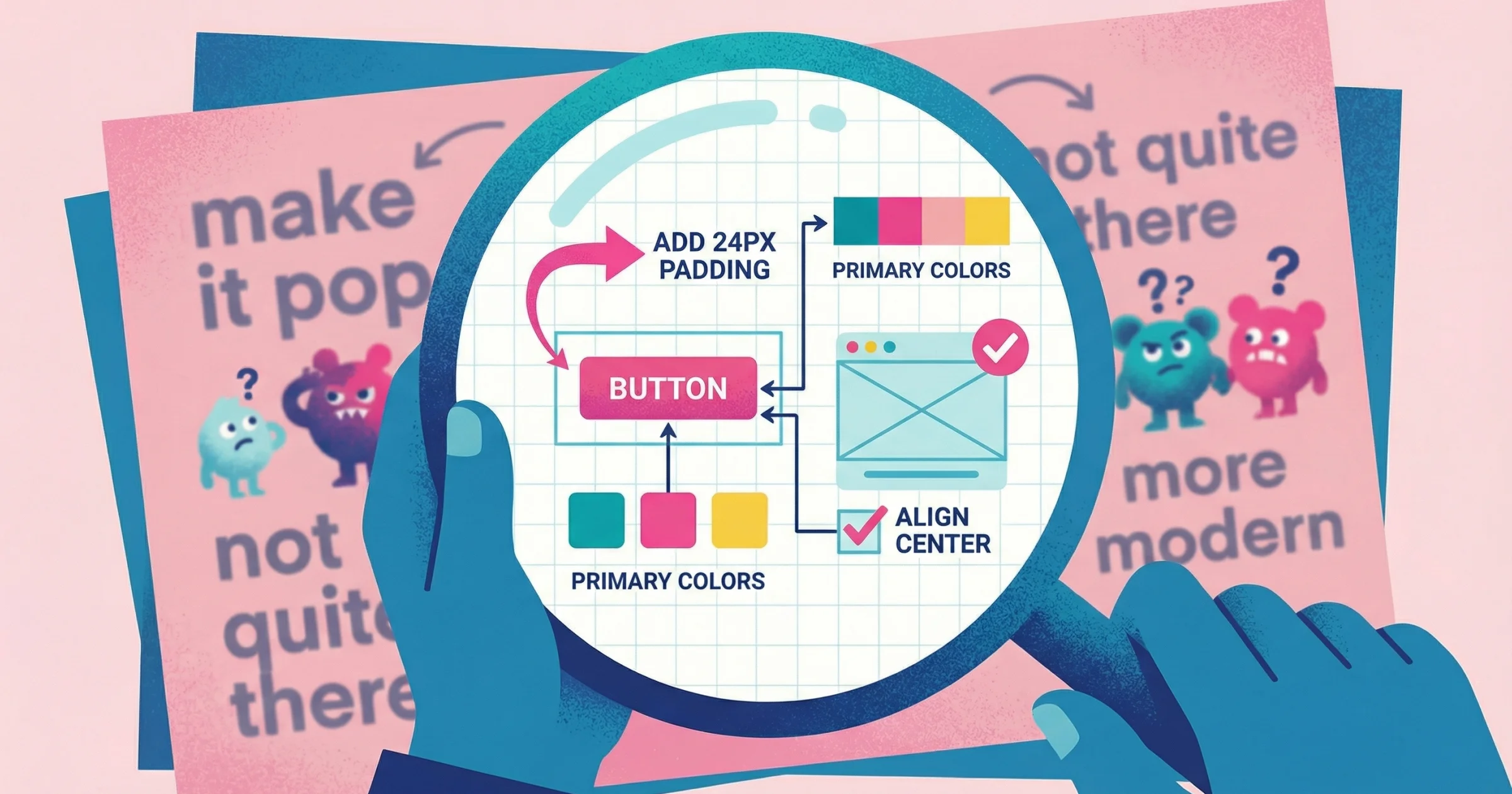
You recorded a perfect Loom explaining a design change. Your client watched it. Then they replied with an email that said "looks good but can you make it pop more?"
That's the problem with one-way video. Loom is great for sending. But when you need video back—clear feedback showing exactly what someone means—you're stuck waiting for another vague email or scheduling yet another call. (Learn more about why written design feedback fails and what works instead)
This guide covers 20+ Loom alternatives that solve different problems: some are completely free with no limits, some make your recordings look professionally edited automatically, and one actually lets you collect video responses without forcing anyone to sign up for anything.
Looking for free options only? Jump to Free Loom Alternatives
Need platform-specific recommendations? See Best Loom Alternative by Platform
This isn't just my experience. Over the past month, I interviewed 20+ designers, agency owners, and consultants about their video feedback workflows. The pattern was universal:
"Loom nowadays is very expensive. We switched to Screen Studio because Loom became even more expensive—I don't know when exactly, but it's gotten out of hand." -Designer at Indonesia-based creative agency
"I get walls of text from clients that probably take them longer to put together than it would to just record a 5-minute video explaining what they mean. But I can't ask them to buy Loom just to give me feedback." — Owner, landscaping industry marketing agency
How We Evaluated These Screen Recording Tools
We tested each alternative across what matters most when replacing Loom: recording quality, sharing workflow, free plan limitations, editing capabilities, platform availability, and internal audio recording. For tools focused on team use, we also assessed collaboration features and integrations. Every tool in this guide was tested hands-on, with pricing and features verified as of January 2026.
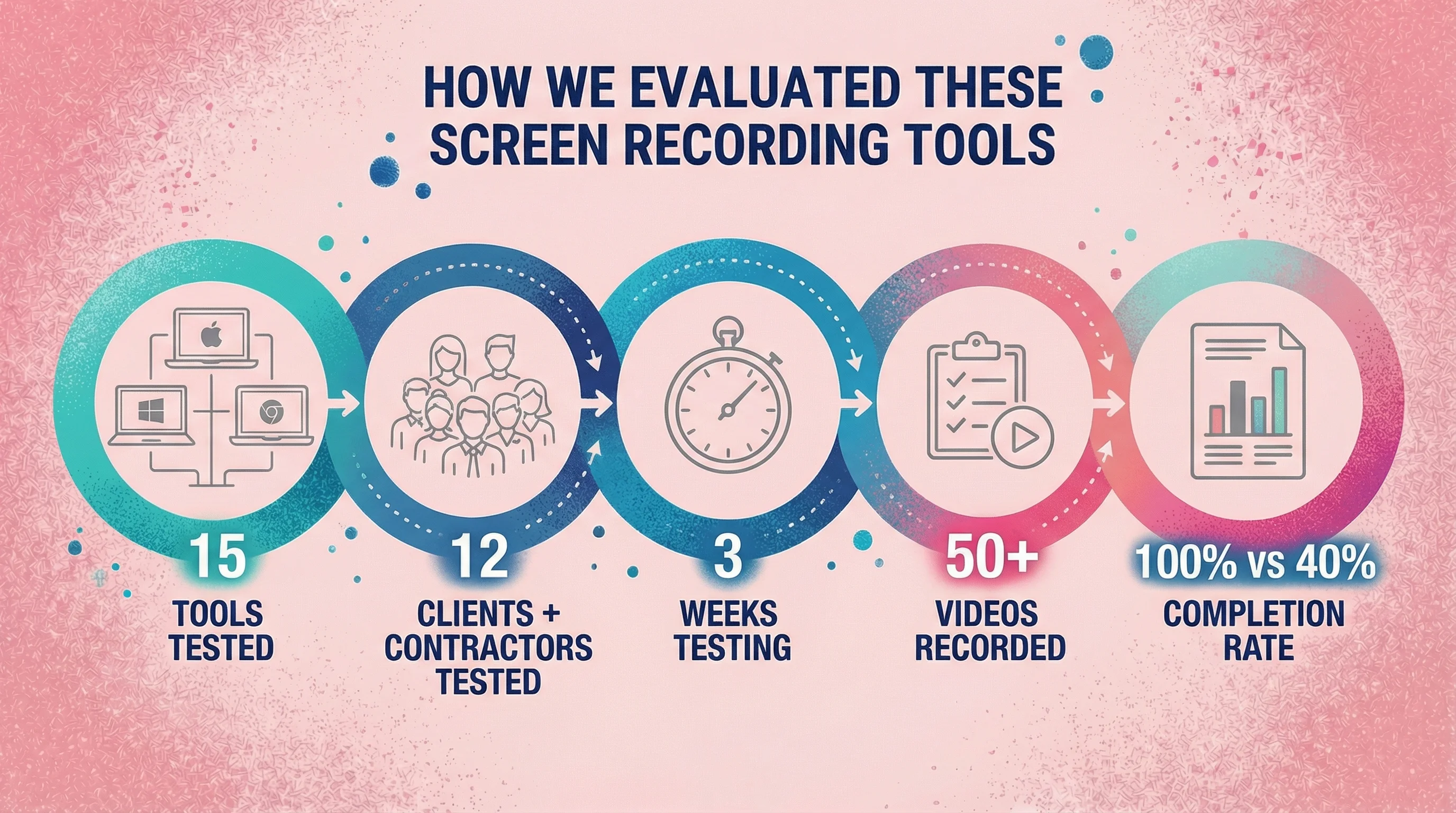
I spent three years testing various screen recording tools across real client projects. Each tool was evaluated while creating design presentations, collecting feedback from clients, and producing tutorial content. I've tested on Mac and Windows machines, recorded over 50 videos, and, most importantly, sent real links to clients and contractors who had never used these tools before to see which ones they'd actually use.
During this process, I also interviewed 20+ agency owners, freelancers, and product designers about their current workflows. Here's what mattered most in real-world use: recording quality, sharing workflow, free plan limitations, editing capabilities, platform availability, internal audio recording capabilities (critical for recording system sounds), and whether non-technical clients could actually use the tool without a tutorial.
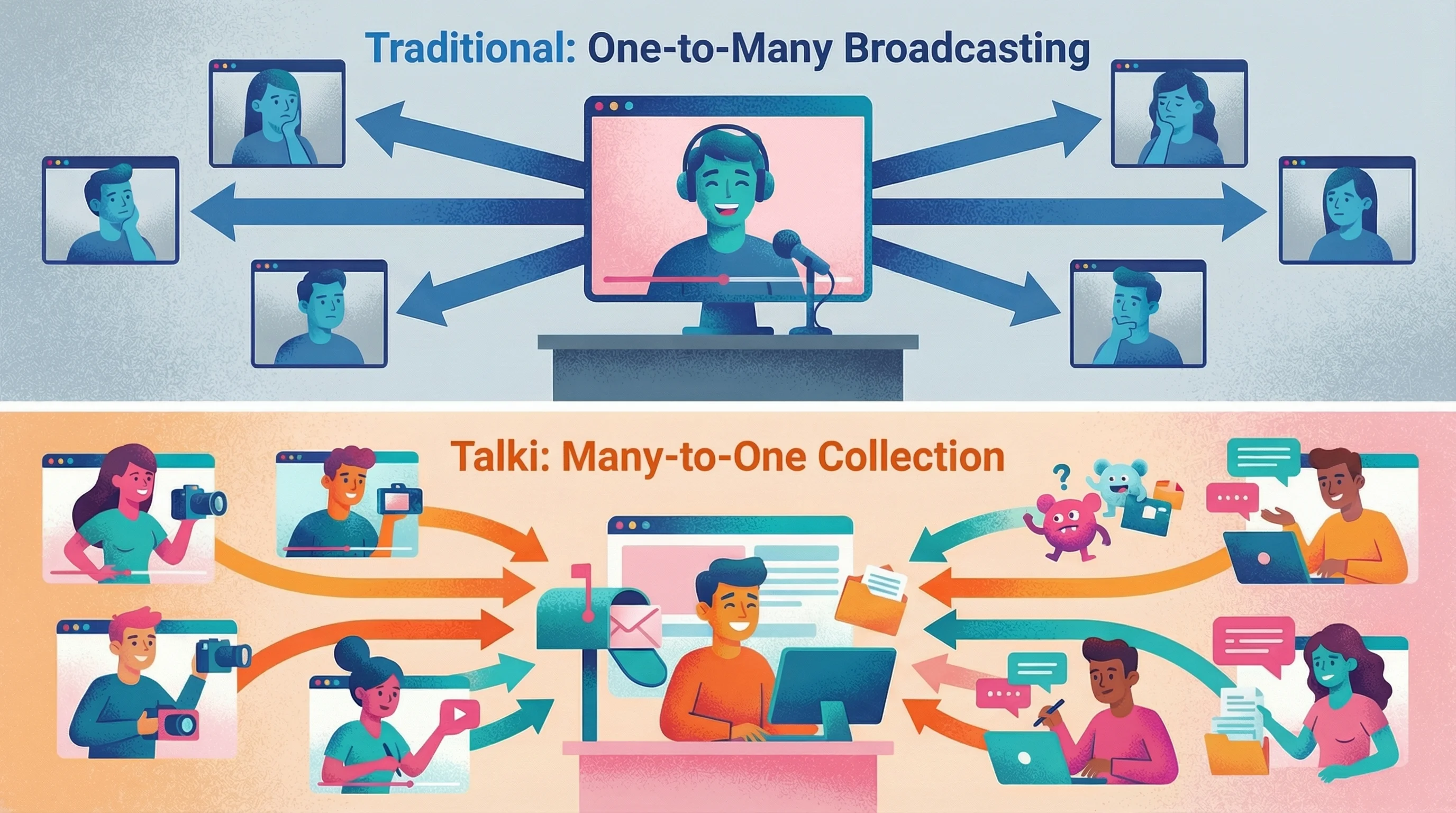
Quick Comparison Table
Tool | Free Plan | Best For | Platforms | User Rating | Key Limitation |
|---|---|---|---|---|---|
Yes (unlimited) | Free recording + collecting replies | Web (any device) | New product | Fewer editing features | |
Unlimited, no watermark | Budget-conscious users | Windows, Mac, Linux | 4.7/5 (G2: 11 reviews) | Personal use only on free | |
3 videos/month, 1-min recordings | All-in-one with editing | Windows, Mac, Chrome | 4.7/5 (G2: 100 reviews) | 1-min cap on free | |
Completely free | Power users | All platforms | 4.6/5 (G2: 123 reviews) | Steep learning curve | |
10 videos lifetime | Educators | Chrome | 4.6/5 (Capterra: 73 reviews) | 10 video limit on free | |
100% free forever | Windows power users | Windows only | 4.8/5 (G2: ~80 reviews) | Windows-only, dated UI | |
Built into macOS | Mac users, occasional use | macOS only | N/A (native utility) | Mac-only, basic features | |
Trial only | Polished Mac demos | Mac only | 4.9/5 (Product Hunt: 160 reviews) | $108/year, no free tier | |
1 free export | Screen Studio for Windows | Windows, Mac | 4.3/5 (G2: 2 reviews) | AI features need credits | |
Limited videos | Creator-friendly editing | Web, iOS, Android | 4.8/5 (Product Hunt: 34 reviews) | Can be slow to export | |
Trial only | AI-enhanced premium videos | Mac, Windows | 5.0/5 (Product Hunt: 9 reviews) | No free plan, $15/month | |
Unlimited | Team feedback on video | Web, Chrome | 4.3/5 (G2: 9 reviews) | Better for internal use | |
10 videos | Enterprise async | Web | 4.7/5 (G2: 367 reviews) | Complex for simple needs | |
Limited captures | Quick screenshots + video | Windows, Mac, Chrome | 4.6/5 (G2: 1,231 reviews) | Feature caps on free | |
15 videos/month | Sales teams | Chrome, iOS, Android | 4.5/5 (G2: 831 reviews) | Expensive for full features | |
No free tier | Personalized outreach | Web, Chrome | 4.7/5 (G2: 372 reviews) | No free plan at all | |
Trial only | Professional tutorials | Windows, Mac | 4.6/5 (G2: 1,631 reviews) | $179.88/year minimum | |
Trial only | Mac video production | Mac only | 4.5/5 (G2: 56 reviews) | $149 license, Mac-only | |
1 hour/month | Edit video by editing text | Mac, Windows | 4.6/5 (G2: 573 reviews) | Very limited free tier |
What Agency Owners Actually Told Me
During research for this guide, I asked agency owners and consultants what they needed from screen recording tools. Three themes dominated:
"Loom is too expensive for what we use it for" — Multiple respondents mentioned Loom's pricing became prohibitive, especially for teams
"Clients won't download software" — Non-technical clients need zero-friction tools or they default to vague emails
"I don't want to watch whole videos" — Designers need summaries and timestamps, not 10-minute recordings to scrub through
These insights shaped how I evaluated every tool in this guide.
Best Free Loom Alternatives
Talki
At a glance:
Platforms: Web (works on any device, no installation)
Price: Free (no limits)
Free plan: Yes (unlimited recording length and video count)
Best for: Free, unlimited recording + collecting video feedback from others
User rating: New product (2026 launch)
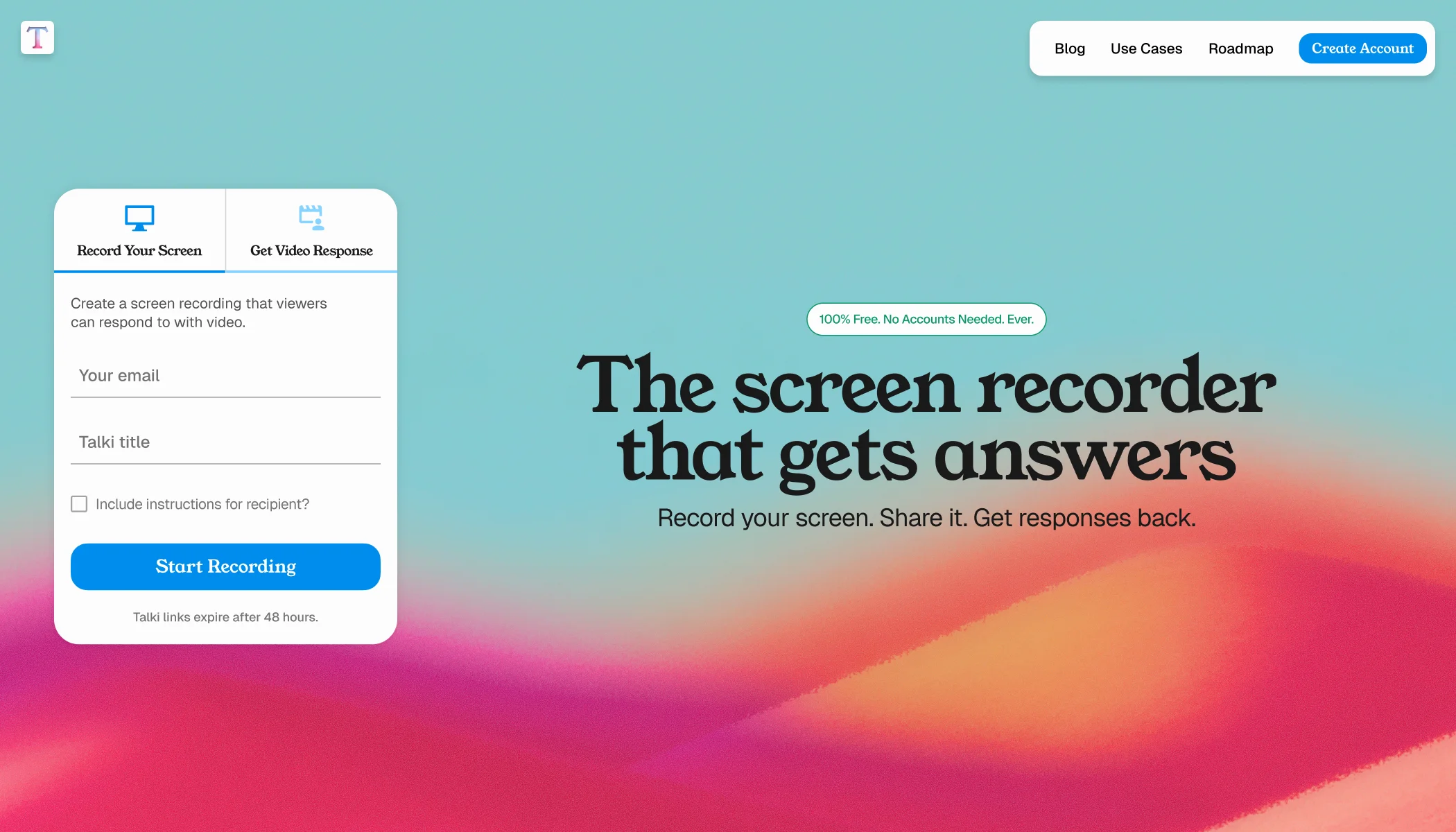
Pros:
No time limits, watermarks, or video caps on free tier
Browser-based—works on any device without installation
Unique two-way capability: collect video responses from others without them needing accounts
No software download required for senders or recipients
Records internal audio (system sounds) for demos and tutorials
Genuinely free with no forced upgrade path for basic use
Cons:
Newer product with fewer advanced editing features than established competitors
No built-in post-production tools like auto-zoom or effects
Focused on simplicity rather than polish
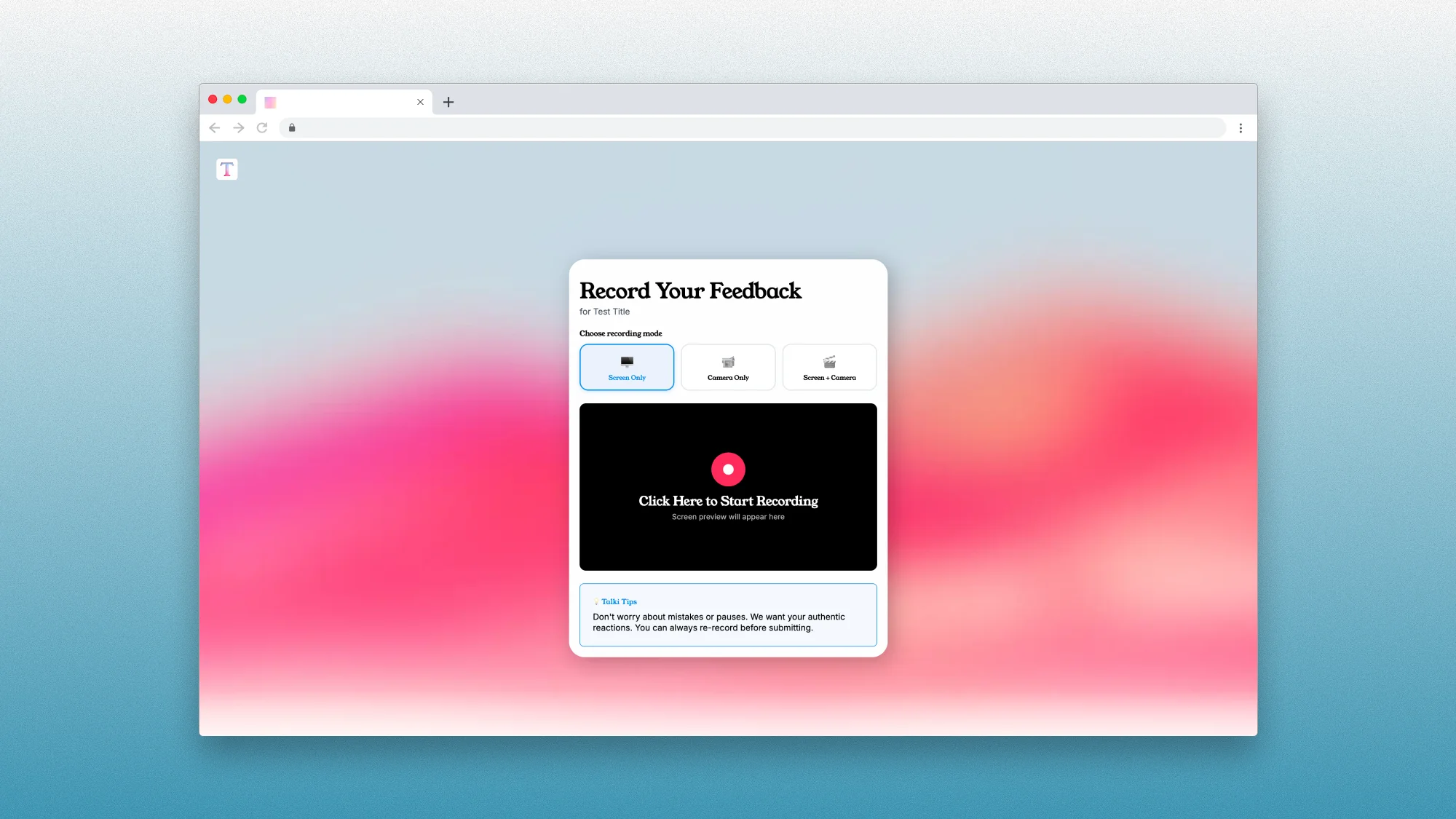
Talki key features breakdown:
Feature | Free | Paid |
|---|---|---|
Recording limit | Unlimited | N/A |
Video storage | Unlimited | N/A |
Watermark | No | N/A |
Platforms | Web (all devices) | N/A |
Video responses | Unlimited | N/A |
Account required | No | N/A |
Pricing overview: Talki is currently free with no paid tier. The company plans to introduce premium features for teams and enterprises but has committed to keeping the core recording and video collection features free indefinitely.
Bottom line: If you want unlimited free recording without installing anything, Talki delivers. The unique ability to collect video responses without forcing recipients to create accounts makes it the only tool on this list solving the two-way video feedback problem. Best for agencies, freelancers, and consultants who need clients to show them issues rather than describe them in vague emails.
Why We Built Talki
After 15 years hearing "make it pop" in every variation, I'd calculated that I lost $8,000-$10,000 per year per just scheduling clarification calls. When I tested every Loom alternative on the market, I realized they all solved the same problem: broadcasting videos to clients.
None solved collecting video feedback without friction. As one consultant told me during testing:
"I'd love to send clients a link where they just record feedback. But if they have to download software or create accounts, they won't do it. My clients are running agencies—they're already drowning in tools." — Operations consultant working with design agencies
That's when I built Talki: click a link, record your screen, done. No accounts, no downloads, no excuses.
Learn more about why video feedback tools work when traditional design feedback fails or explore our full breakdown of client feedback software for agencies.
ScreenRec
At a glance:
Platforms: Windows, macOS (Apple Silicon & Intel), Linux
Price: Free forever, no watermark, no time limits
Free plan: Yes (unlimited everything)
Best for: Budget-conscious users needing simple recording
User rating: 4.7/5 stars on G2 (based on 11 reviews as of January 2026)
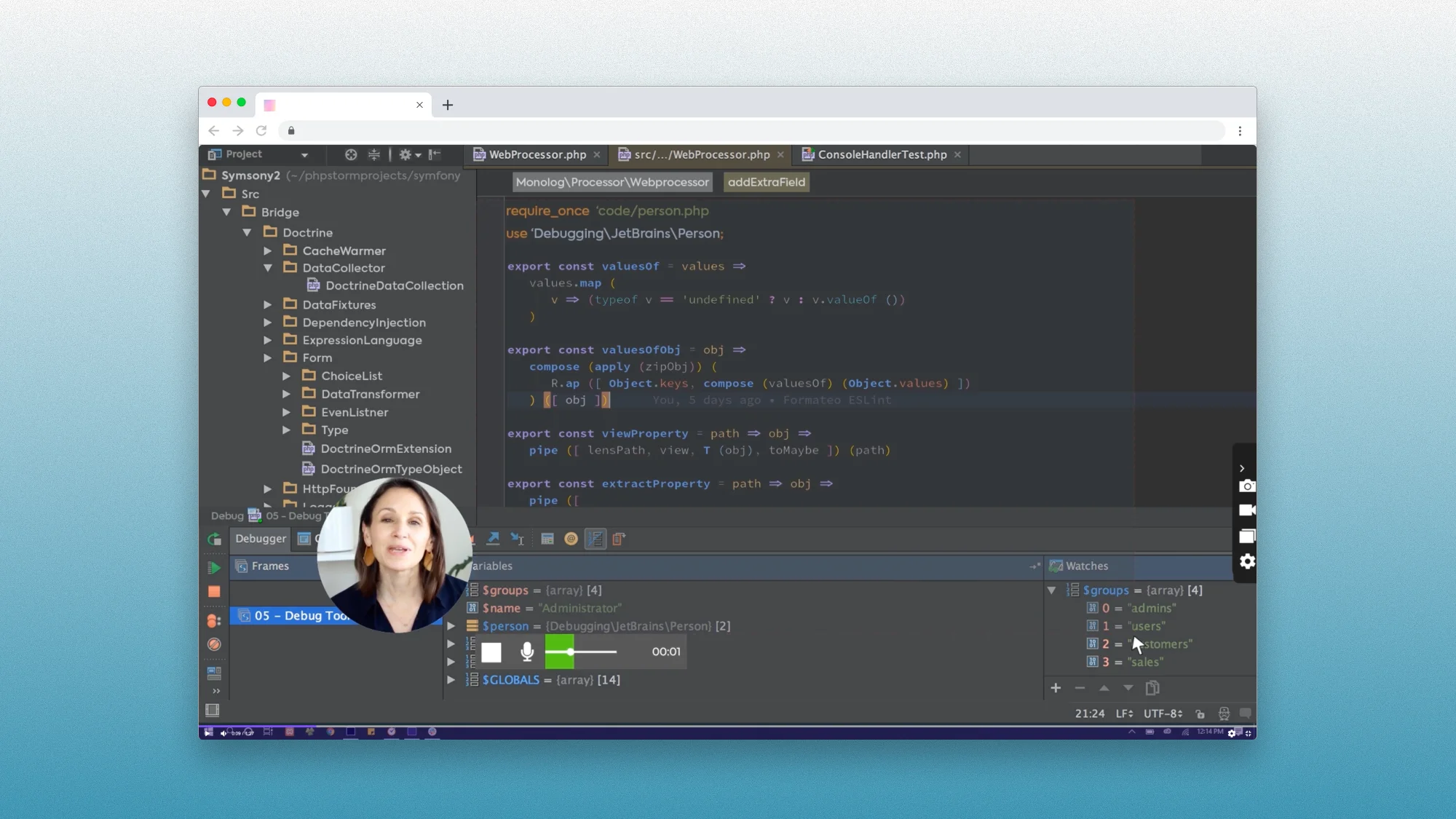
Pros:
Completely free with no time limits or video caps
No watermark on any recordings
Instant sharing links generated automatically
No account required for basic recording
Extremely lightweight and fast
One-click recording workflow
Cross-platform: Windows, Mac, and Linux support
Cons:
No editing tools beyond basic trimming
Interface feels dated compared to modern alternatives
720p quality limitation (1080p requires paid plan)
Free tier restricted to personal use (commercial requires Pro plan)
Manual file management—no organized cloud library
ScreenRec key features breakdown:
Feature | Free | Pro ($4/mo) | Premium ($49/mo) |
|---|---|---|---|
Recording limit | Unlimited | Unlimited | Unlimited |
Video storage | 2 GB | 50 GB | 200 GB |
Watermark | No | No | No |
Resolution | 720p | 1080p | 4K |
Usage rights | Personal only | Commercial | Commercial |
User seats | 1 | 1 | 5 |
Internal Audio | Yes | Yes | Yes |
Support | Basic KB | Email & chat | Priority phone |
Pricing overview: ScreenRec's free tier is genuinely free forever with unlimited recording time. However, it's restricted to personal use only—if you're recording for client work, freelancing, or business purposes, the Pro plan ($4/month annually, $8 month-to-month) is required for commercial rights. Pro also unlocks 1080p quality and 50GB storage. The Premium plan ($49/month) adds 4K recording and team features.
Bonus for Educators: ScreenRec offers their Pro plan free to teachers and 50% off for schools.
Bottom line: ScreenRec delivers unlimited free recording that works across Windows, Mac, and Linux. The main trade-offs are 720p quality and the personal-use restriction on the free tier. G2 reviews consistently mention the quality limitation—"you can only record screens in 720 quality, so that's a bummer"—but praise the simplicity and instant sharing. With over 15 million users, it's proven itself as a reliable free option. Best for personal projects, support teams, and developers who need quick recordings without fuss. If you need commercial rights or higher quality, the $4/month Pro plan is still significantly cheaper than Loom.
Vmaker
At a glance:
Platforms: Windows, macOS, Chrome extension
Price: Free (limited) | Paid from $18/month
Free plan: Yes (3 videos/month, 1-min recordings, 720p, 2GB storage)
Best for: All-in-one recording with built-in editing tools
User rating: 4.7/5 stars on G2 (based on 100 reviews as of January 2026)
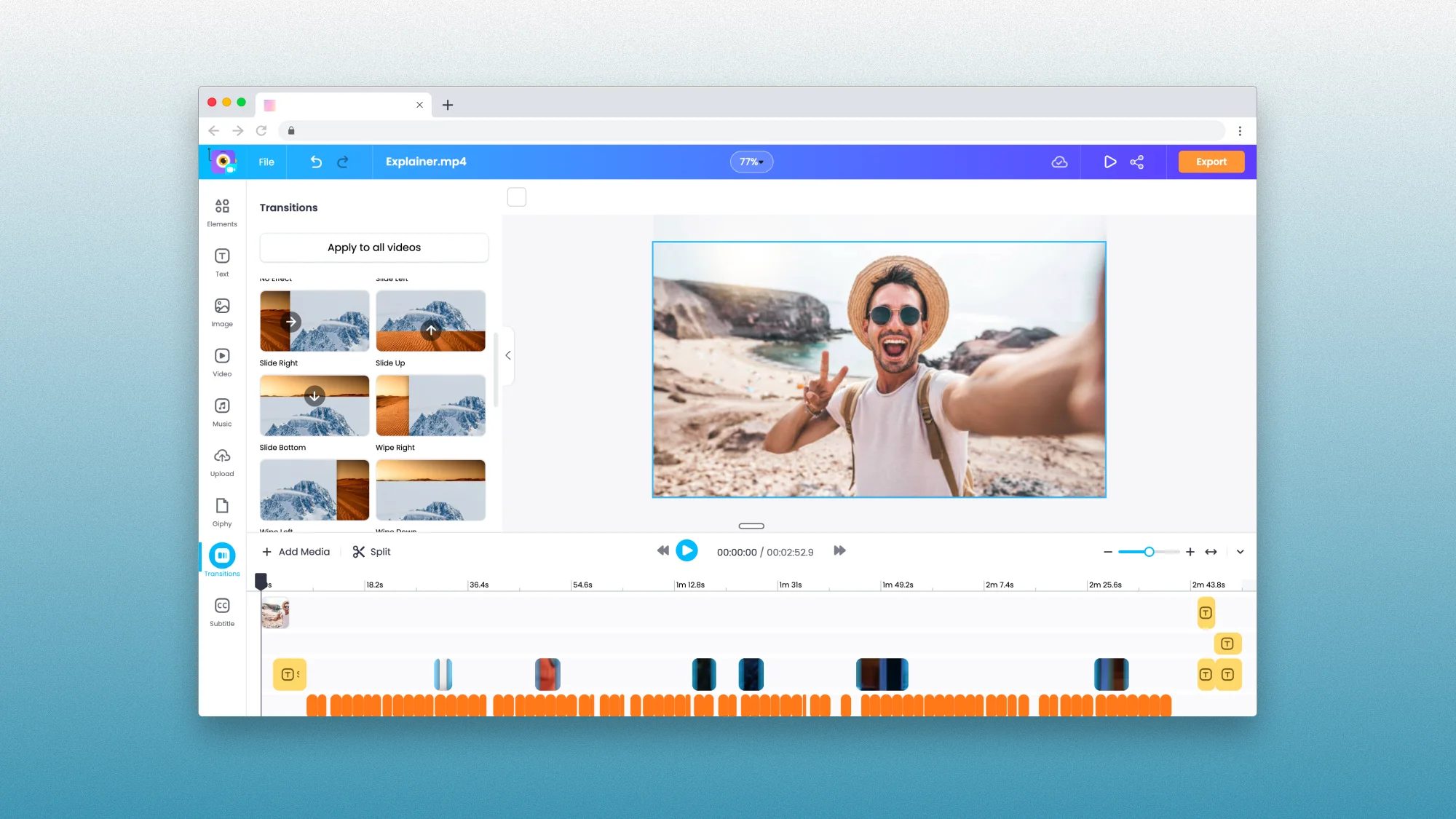
Pros:
Built-in video editor with trimming, subtitles, and effects
Chrome extension works on any OS including Chromebooks
Cloud storage included (2GB free)
AI features on paid plans (auto-captions, avatar presenters)
Strong user rating with large review sample (100 reviews)
Records internal audio for complete system sound capture
Cons:
1-minute recording limit on free plan (5-min export after editing)
Only 3 YouTube publishes per month on free tier
720p maximum resolution on free (1080p requires paid)
2GB cloud storage fills quickly with regular use
Watermark on free tier (must upgrade to remove)
Occasional bugs: upload failures, lag during longer recordings, webcam issues when switching tabs
No viewer analytics (can't track who watched or engagement)
Vmaker key features breakdown:
Feature | Free | Starter ($18/mo) | Teams ($25/mo) |
|---|---|---|---|
Recording limit | 1 min | 30 min | 4 hours |
Export length | 5 min | 30 min | 45 min |
Videos per month | 3 YouTube publishes | 10 downloads | 30 downloads |
Storage | 2 GB | 2 GB | 5 GB |
Watermark | Yes | No | No |
Resolution | 720p | 1080p | 2K |
AI captions | No | Limited | Yes |
Team features | No | No | Yes |
Internal Audio | Yes | Yes | Yes |
Pricing overview: Vmaker's Starter plan costs $18/month (billed annually at $216) and unlocks 30-minute recordings, 1080p quality, and removes watermarks. The Teams plan ($25/month annually) adds 4-hour recordings, 2K quality, and team collaboration features. The free tier is quite limited compared to alternatives like Talki or ScreenRec.
Bottom line: Vmaker strikes a balance between free screen recording and editing capabilities, but the 1-minute recording limit makes the free tier impractical for most professional use. Recent reviews (100+ on G2) consistently praise the ease of use but note the storage limitation—"free storage runs out quickly"—and occasional bugs like upload failures and lag during longer recordings. Unlike Vidyard or Sendspark, Vmaker doesn't provide viewer analytics, focusing purely on creation and editing. If you need built-in editing without learning complex software and can work within the 1-minute limit, Vmaker's free tier works. Most users will need the $18/month Starter plan for practical use.
OBS Studio
At a glance:
Platforms: Windows, macOS, Linux
Price: Free and open-source
Free plan: Yes (completely free, no limitations)
Best for: Power users and content creators needing full control
User rating: 4.6/5 stars (G2)
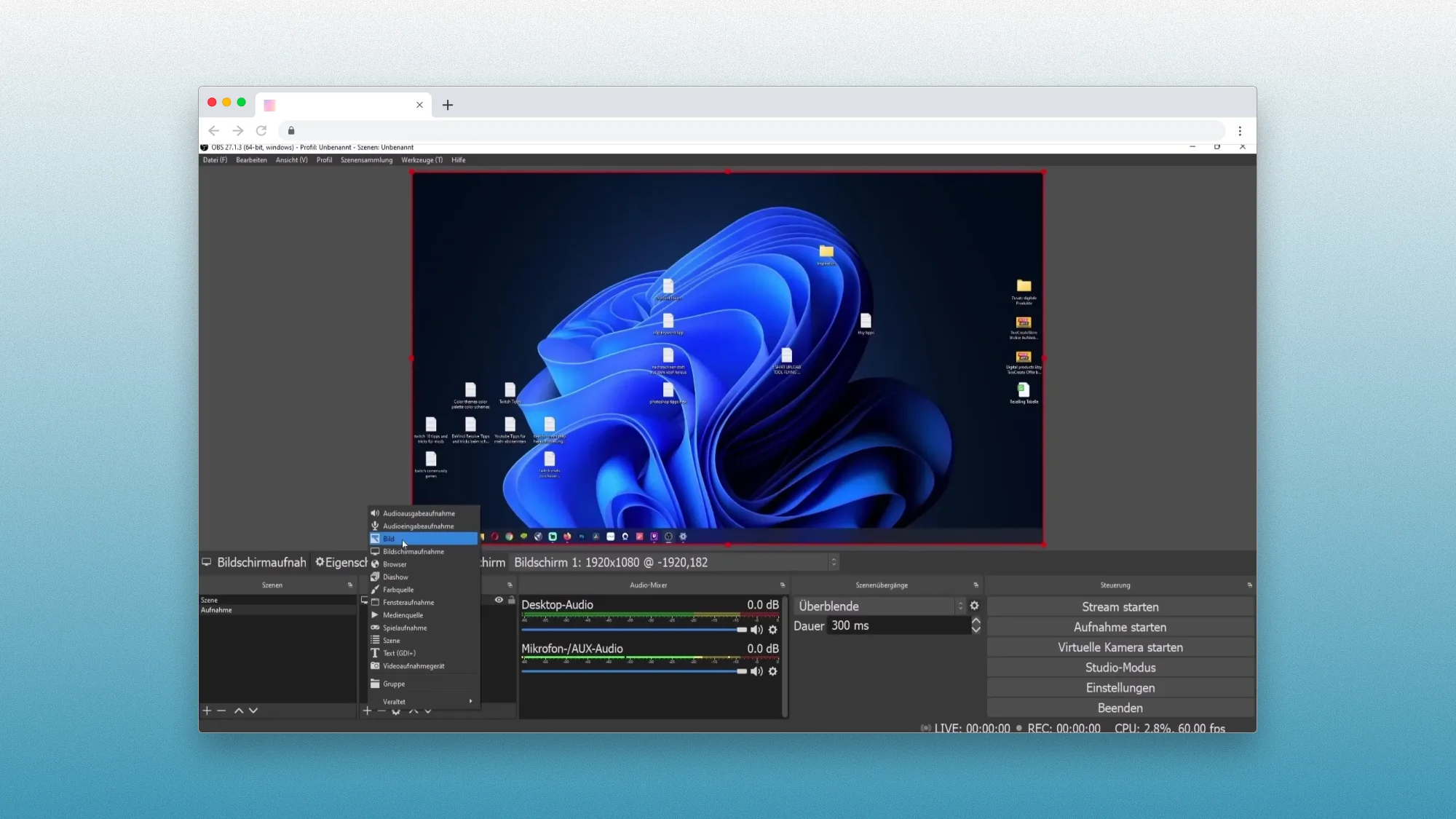
Pros:
Completely free and open-source—no paid upgrades
Professional-grade features: multiple camera angles, custom overlays, scene switching
Advanced audio mixing and filters
High-quality recording with customizable bitrates
Full internal audio recording with advanced routing options
Plugin ecosystem extends functionality infinitely
Used by professional streamers and content creators worldwide
Cons:
Steep learning curve—not beginner-friendly (consistently mentioned across all reviews)
No cloud sharing built-in (local file export only)
Plugin compatibility issues on Mac (some plugins don't work properly)
Resource-intensive—requires decent hardware
Overkill for simple screen recordings
No automatic sharing links (you upload manually to YouTube/Dropbox/etc.)
OBS Studio key features breakdown:
Feature | Free | Paid |
|---|---|---|
Recording limit | Unlimited | N/A |
Scene switching | Yes | N/A |
Audio mixing | Professional | N/A |
Resolution | Up to 4K | N/A |
Plugins | Unlimited | N/A |
Cloud sharing | No (manual) | N/A |
Pricing overview: OBS Studio is free forever with no paid tier. Being open-source, it's maintained by volunteers and funded by donations. No features are locked behind paywalls.
Bottom line: OBS is what professionals use when they need absolute control over recording quality and presentation. Recent G2 reviews (123 total) consistently praise the free, open-source nature and professional features, while unanimously noting the steep learning curve—"you need to be a pro to do the settings properly." If you're creating tutorials with picture-in-picture, recording gameplay, or producing video courses, OBS gives you broadcast-quality results for free. But if you just need to send quick screen recordings, it's massive overkill—tools like Talki or ScreenRec give you instant sharing without the complexity. The learning investment pays off for serious content creators but frustrates casual users looking for Loom-style simplicity.
Screencastify
At a glance:
Platforms: Chrome extension (works on any OS with Chrome)
Price: Free (limited) | Paid from $7/month
Free plan: Yes (10 videos lifetime, 30-min recordings, 1080p quality)
Best for: K-12 educators and students needing LMS integration
User rating: 4.6/5 stars on Capterra (based on 73 reviews as of January 2026)
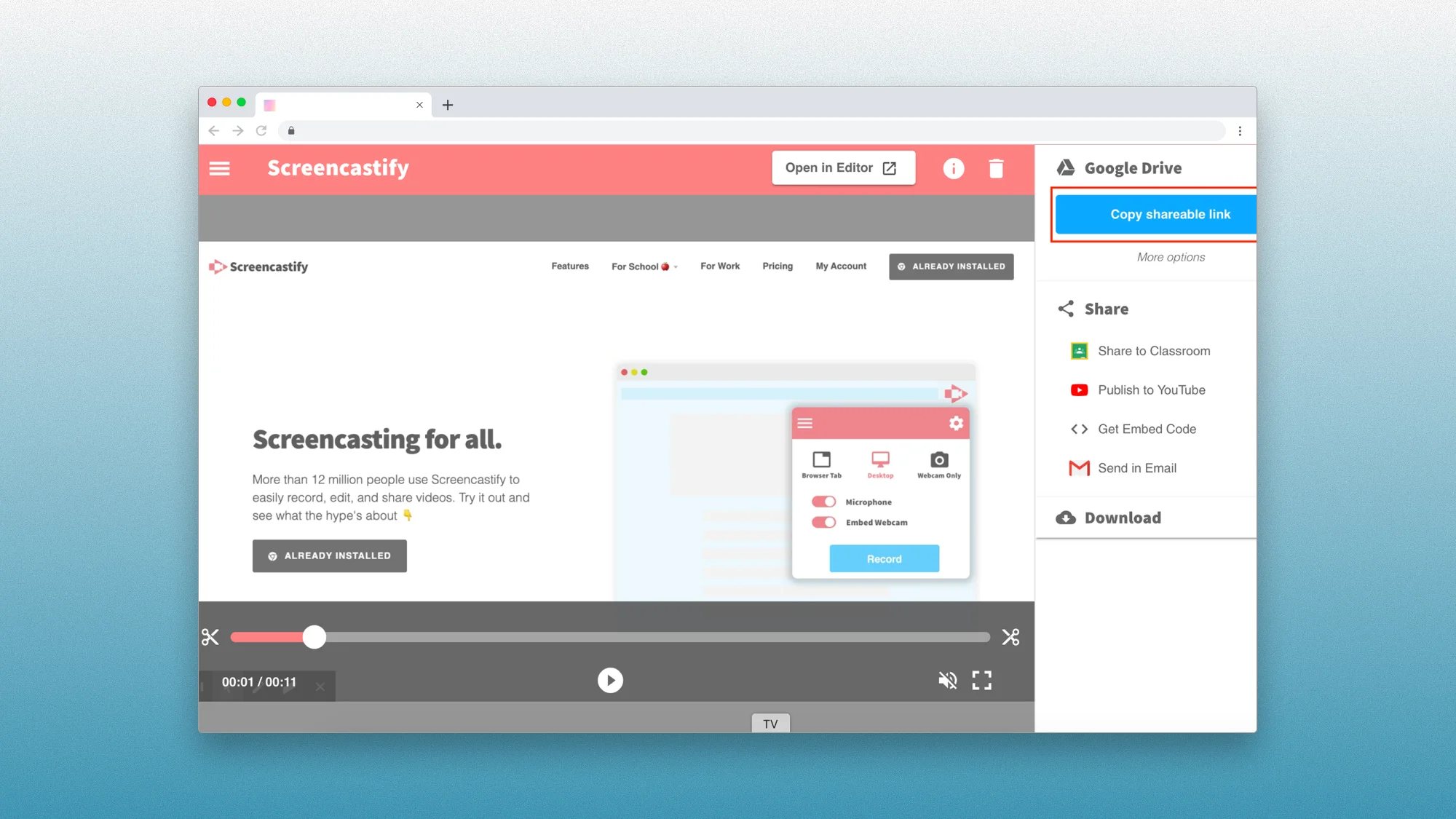
Pros:
Extremely easy to use—browser-based, no software installation
Direct YouTube publishing saves time
Google Classroom, Canvas, and Schoology LMS integrations
Google Drive auto-upload for organization
FERPA/COPPA compliant for K-12 schools
1080p quality on free tier
No watermark on free tier
Records internal audio (with system audio add-on on paid plans)
Cons:
Only 10 videos on free tier (not unlimited)—can earn up to 20 bonus via referrals
30-minute recording limit on free tier (60 min on Starter, 180 min on Pro)
Requires internet connection to view videos (no easy offline download)
Occasional reliability issues: lost recordings, random logouts, missed beginnings
Slow processing speed (multiple recent reviews mention this)
No playback speed control in editor (must review at normal speed)
Basic editing tools compared to dedicated video editors
Preview freezing issues during playback
Chrome extension only (no native desktop app)
Screencastify key features breakdown:
Feature | Free | Starter ($7/mo) | Pro ($10/mo) |
|---|---|---|---|
Video limit | 10 total (+20 bonus via referrals) | Unlimited | Unlimited |
Recording length | 30 min | 60 min | 180 min |
Quality | Up to 1080p | Up to 1080p | Up to 4K |
Watermark | No | No | No |
Basic editing | Yes | Yes | Yes |
Questions & polls | No | Yes | Yes + AI |
AI features | No | No | Yes (captions, translations) |
Download videos | No | No | Yes |
Pricing overview: Screencastify's Starter plan ($7/month annually, $19 monthly)unlocks unlimited videos and 60-minute recordings. The Pro plan ($10/month annually, $25 monthly) adds AI features like captions, translations, voiceovers, and teleprompter scripts. Special education pricing packages available for schools and districts.
Bottom line: Screencastify is purpose-built for K-12 education with LMS integrations for Google Classroom, Canvas, and Schoology. The 10-video free tier limit (not unlimited) makes it impractical for regular use—most users will need Starter ($7/month) for unlimited videos. Capterra reviews (73 total, 4.6/5) consistently praise the ease of use but flag reliability concerns: "I've lost recordings that have simply disappeared" and "slow processing speed" are recurring themes. The browser-only approach means you need an internet connection to view videos unlike downloadable tools. If you're a teacher creating tutorials or students submitting assignments, Screencastify's education focus and LMS integration make it ideal. For business feedback collection or client communication, tools like Talki or Vidyard offer more appropriate features.
ShareX
At a glance:
Platforms: Windows (open-source)
Price: 100% free and open source (no pro version)
Free plan: 100% free—unlimited recordings, no watermark or time limits
Best for: Windows power users who want a free, no-frills recorder with customization
User rating: 4.8/5 on G2 (~80 reviews)
Pros:
Completely free software with no ads or watermarks (community-developed)
Extremely versatile: capture full screen, window, region, scrolling content, GIFs, etc., plus screenshot annotation and file uploading
Highly customizable workflows (automated tasks after capture, direct upload to Imgur/FTP, hotkeys)
Records internal audio for complete system sound capture
Open-source with active development community
Cons:
Windows-only (no Mac or mobile support)
Outdated interface and steep learning curve—the plethora of options can overwhelm beginners
No built-in cloud hosting or team collaboration (you must configure third-party upload services)
ShareX key features:
Capture modes: Full screen, window, region, scrolling window, GIF recording
Automation: Custom workflows, automated upload to 80+ destinations
Annotation tools: Draw, highlight, blur, add text to screenshots
Hotkeys: Fully customizable keyboard shortcuts
Internal audio: Yes, with full system audio capture
Pricing: None—completely free, donation-supported
Bottom line: ShareX is best for tech-savvy Windows users who need a powerful screen capture toolkit without spending a dime. It's not polished or cross-platform, but its flexibility is unmatched if you're willing to tinker. The learning curve is steeper than simple recorders like Talki or ScreenRec, but for Windows power users who want complete control over capture workflows, ShareX delivers professional-grade features for free.
QuickTime Player
At a glance:
Platforms: macOS (built-in)
Price: Included with macOS (free)
Free plan: Built-in—unlimited screen recording length, no watermark by default
Best for: Mac users wanting a basic built-in recorder for occasional use
User rating: N/A (native OS utility; not listed on major review sites)
Pros:
Nothing to install—comes pre-loaded on every Mac
Simple one-click recording of screen (or a selected region) with optional microphone audio
Reliable and lightweight for basic needs, and allows quick trimming of clips
No learning curve—familiar interface for Mac users
Cons:
Mac only (Windows QuickTime is deprecated and lacks recording)
No advanced features: cannot capture system audio (internal audio) without third-party hacks, no webcam overlay or annotations
Limited output options (records .MOV files; user must manually share via other means)
QuickTime key features:
Screen recording: Full screen or selected region
Audio: Microphone only (no internal audio without workarounds)
Editing: Basic trimming only
Export: .MOV files (requires manual sharing)
Pricing: Free (included with macOS)
Bottom line: QuickTime is a handy fallback for Mac users—perfect for quick, no-frills screen recordings. It's not feature-rich by any means, but it gets the job done for simple tasks without requiring additional software. The biggest limitation is the lack of internal audio recording (system sounds), which requires third-party solutions like BlackHole or Loopback. For occasional use or quick tutorials, QuickTime works. For anything more substantial, consider Screen Studio or ScreenFlow.
Best for Polished Product Demos
These tools automatically make your raw recordings look professionally edited—smooth cursor movements, intelligent zooms, and cinematic polish without touching a timeline.
Screen Studio
At a glance:
Platforms: macOS only (Ventura 13.1+)
Price: One-time purchase (lifetime license)
Free plan: Free trial available
Best for: Mac users creating polished product demos and social media content
User rating: 4.9/5 stars on Product Hunt (based on 160 reviews as of January 2026)
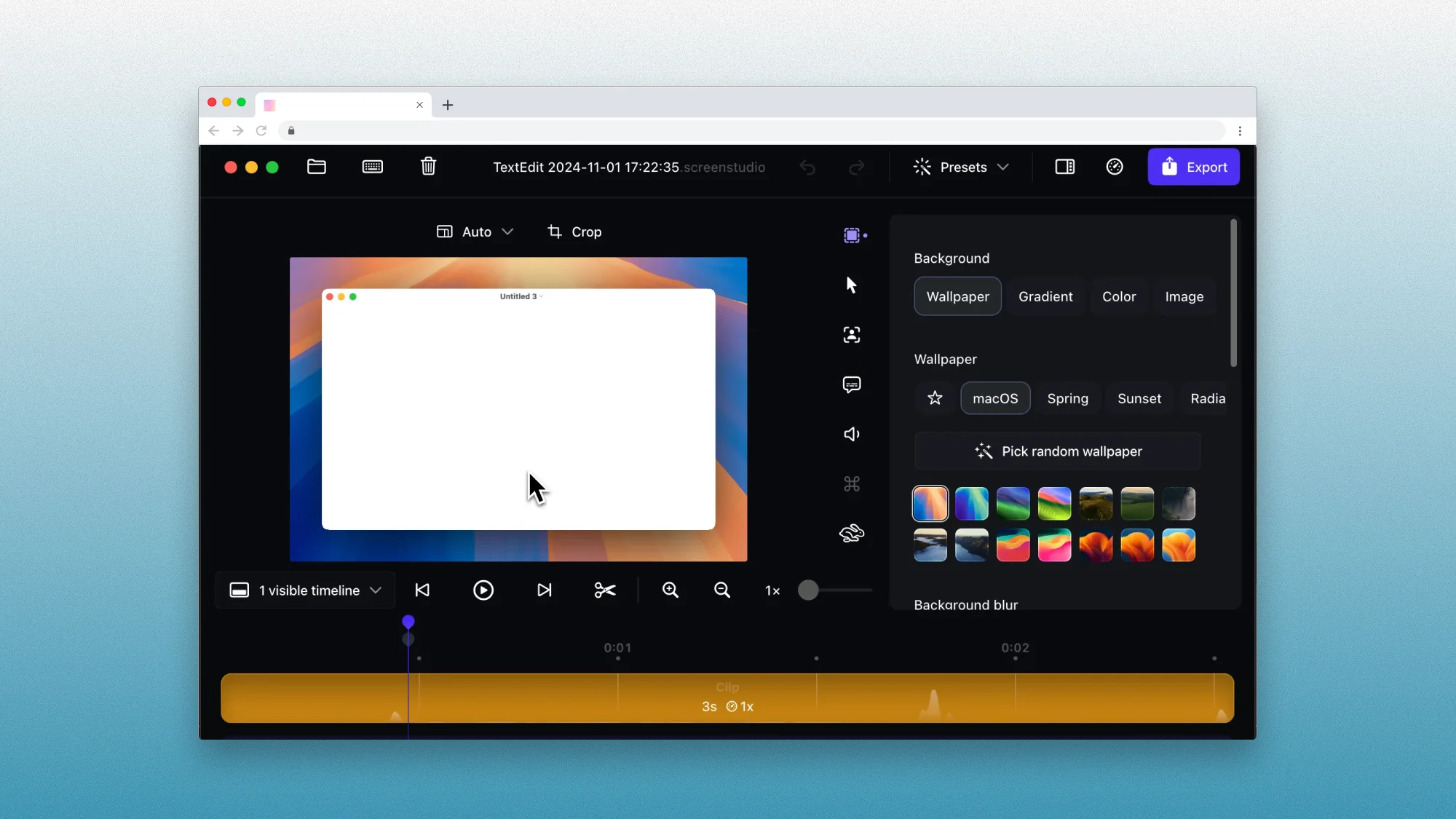
Pros:
Highest rating of any tool reviewed (4.9/5 from 160 Product Hunt reviews)
Automatic polish: smooth cursor, auto-zoom, motion blur applied instantly
Beautiful output with minimal editing effort
Vertical format export for social media (automatically adjusts zooms)
One-time purchase (lifetime license) - no subscription required
Customizable backgrounds and branding
Fast performance and frequent updates
High-quality 4K export
Internal audio recording for complete demos
Cons:
macOS only—no Windows or Linux support (most-requested feature)
Expensive upfront cost compared to subscription tools
Limited audio editing features
No cloud sharing (local export only)
No team collaboration features
Automatic effects can't be fully customized (opinionated design)
Screen Studio key features:
Automatic zoom: Zooms in on cursor actions automatically
Smooth cursor movement: Transforms shaky cursor into smooth glide
Motion blur: Cinematic effects applied automatically
Background customization: Add wallpapers, adjust spacing, shadows
Vertical mode: Export optimized for TikTok/Instagram
High-resolution cursors: Replaces system cursors with HD versions
Internal audio: Full system audio capture
Pricing overview: Screen Studio uses a one-time purchase model (lifetime license) instead of monthly subscriptions. This is increasingly rare in the screen recording market and is consistently praised in Product Hunt reviews as a major advantage. Pricing varies based on the version - check their website for current pricing.
Bottom line: Screen Studio earns the highest rating of any tool reviewed (4.9/5 from 160 Product Hunt reviews), with users praising it as their preferred alternative to Loom (for visual polish) and OBS (for simplicity). The automatic effects—smooth cursor movement, auto-zoom on clicks, motion blur—transform raw recordings into polished promotional videos in minutes with zero manual editing. The catch? It's macOS-only, with Windows support being the most-requested feature. The one-time purchase model appeals to users tired of subscriptions, but the upfront cost is higher than monthly tools. Makers of products like Recall, Den, and ScreenSpace specifically highlight Screen Studio's quality and fast workflow. Best for Mac users creating product demos, tutorials, or social media content who value automatic polish over customization control. If you need cross-platform support or client feedback collection, tools like Talki or Loom are more practical.
FocuSee
At a glance:
Platforms: Windows, macOS
Price: 30-day plan: $19.99 | 1-Computer plan: $69.99 (one-time purchase)
Free plan: Yes (with watermark and limitations)
Best for: Creating short tutorial videos with automatic zoom effects
User rating: Limited review data (4.3/5 on G2, but only 2 reviews as of January 2026)
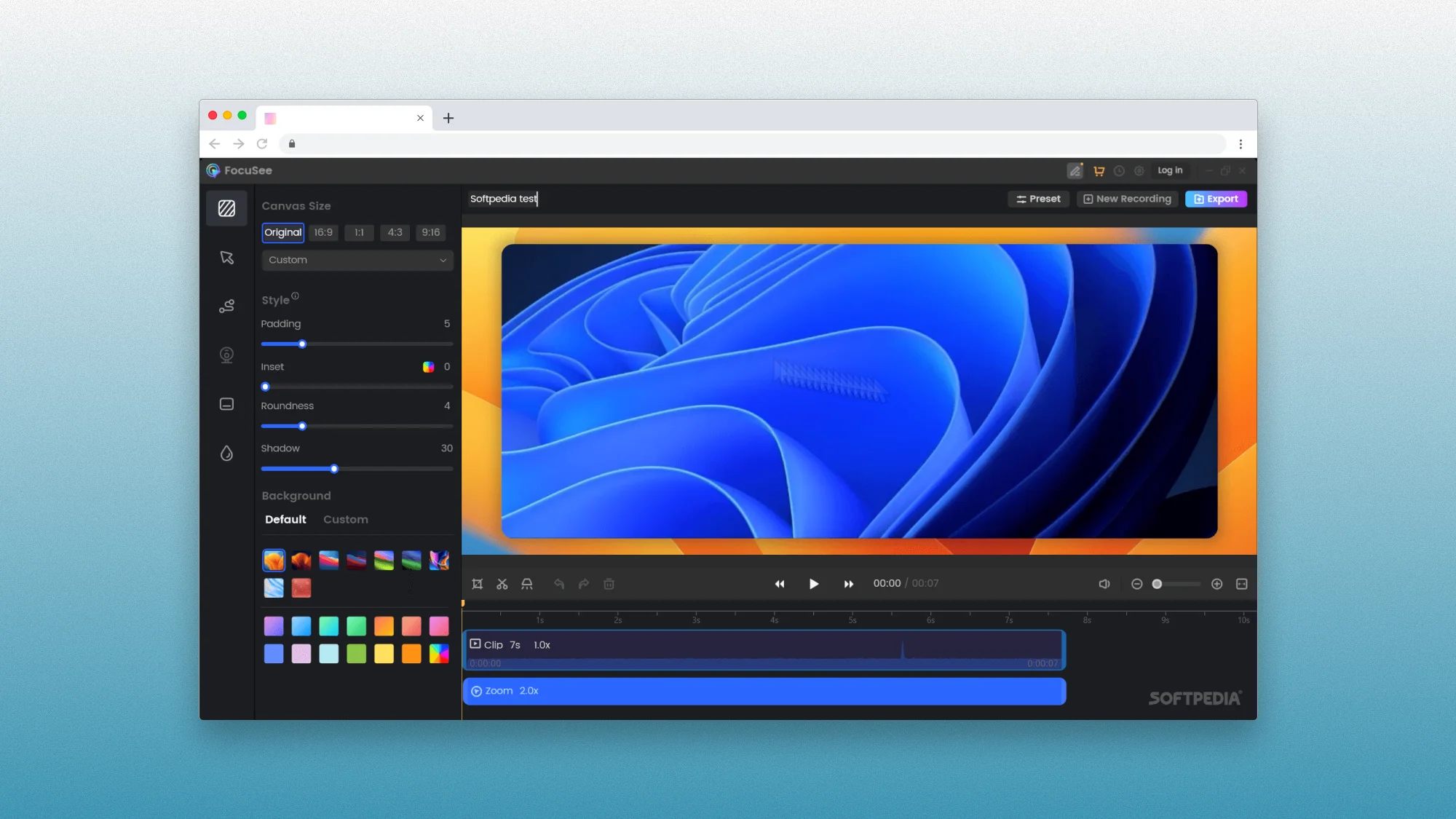
Pros:
Automatic zoom-in/zoom-out on cursor actions
Simple and intuitive interface
One-time purchase pricing (no subscription)
Cross-platform (Windows and Mac)
Various cursor styles and click effects
Good for short, engaging content
Internal audio recording for system sounds
Cons:
Very limited independent reviews (only 2 on G2 as of January 2026)
Performance concerns: "uses quite a bit of processing power" (user review)
Animation smoothness issues reported
Some blur in output (user review)
No green screen feature for webcam
Newer product without established reputation
Significantly fewer reviews than alternatives like Screen Studio (160 reviews)
FocuSee key features:
Feature | Standard | Advanced (Annual) | Advanced (Lifetime) |
|---|---|---|---|
Price | $49.99/year | $79.99/year | $199.99 one-time |
Computers | 1 device | 3 devices | 5 devices |
AI Credits | ❌ None (pay separately) | ✅ 3,600/year | ✅ 1,000 (1-year validity) |
License | Annual subscription | Annual subscription | Lifetime (V2.x) |
Auto-zoom & cursor | ✓ | ✓ | ✓ |
4K & 60fps export | ✓ | ✓ | ✓ |
Cloud storage | 5GB | 5GB | 5GB |
Internal Audio | ✓ | ✓ | ✓ |
FocuSee pricing plans:
Plan | Price | Computers | AI Credits | Best For |
|---|---|---|---|---|
Standard | $49.99/year | 1 | ❌ None | Single user, basic features |
Advanced Annual | $79.99/year | 3 | ✅ 3,600/year | Teams, regular AI use |
Advanced Lifetime | $199.99 | 5 | ✅ 1,000 (1yr) | Multi-device, one-time cost |
All plans include: Auto-zoom, cursor effects, 4K & 60fps export, 5GB cloud storage, background removal
AI Credits unlock (Advanced only): Subtitles in 55+ languages, 100+ virtual avatars, filler word & silence removal, voice enhancement
Bottom line: FocuSee delivers automatic zoom and cursor effects similar to Screen Studio, but at a lower price point. However, with only 2 reviews on G2 (compared to Screen Studio's 160 Product Hunt reviews), it's difficult to assess real-world reliability and user satisfaction. The two existing reviewers praise the ease of use and auto-zoom feature but note performance concerns ("uses quite a bit of processing power") and animation smoothness issues. The one-time purchase model is attractive for budget-conscious users, but the lack of established reputation makes it a riskier choice than more proven alternatives. If you're considering FocuSee, the 30-day plan ($19.99) lets you test before committing to the lifetime license. For more established options with extensive user feedback, consider Screen Studio (Mac) or Vmaker (cross-platform).
Tella
At a glance:
Platforms: Browser-based (works on any OS) + Mac desktop app
Price: Free (limited) | Paid plans from TBD/month
Free plan: Yes (with limitations)
Best for: Entrepreneurs and creators who need quick, polished video content
User rating: 4.8/5 stars on Product Hunt (based on 34 reviews as of January 2026)
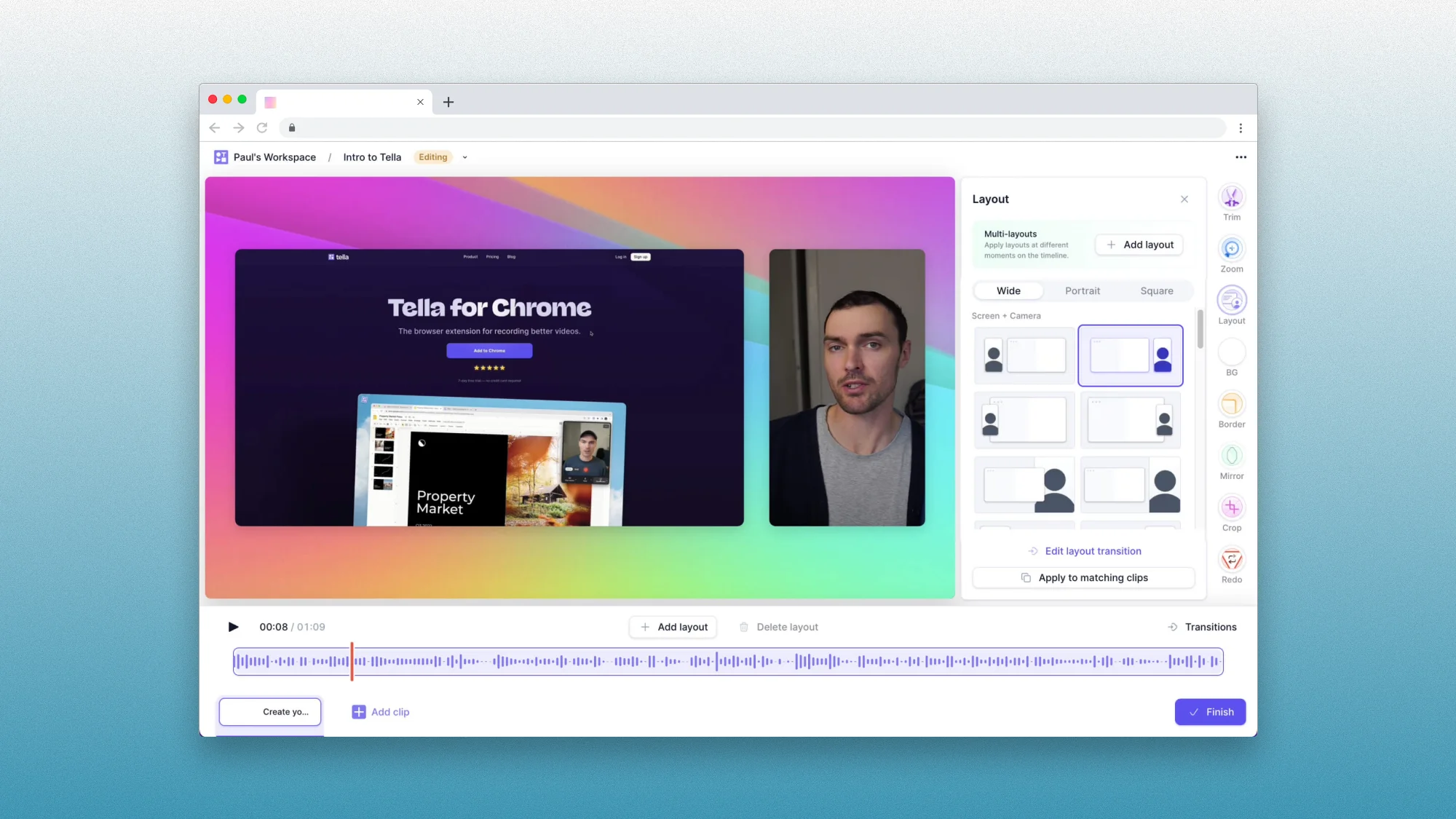
Pros:
Extremely easy to use (most-mentioned pro in reviews)
High-quality, polished output with minimal effort
Multiple customizable screen and camera layouts
Built-in AI editing with smooth transitions
Strong reputation as "Loom alternative"
Competitive pricing ($15/month vs Loom's $12.50/month)
Internal audio recording for system sounds
Cons:
Occasional bugs reported (2 mentions in reviews)
Some users want deeper customization controls
No monthly free tier (only 7-day trial)
60 FPS export limited to 5 minutes on Pro plan
Tella key features:
Multiple layouts: Customize screen and camera positioning
Auto-editing: Built-in transitions and polish
Zoom feature: Emphasize specific screen areas
Browser-based: No software installation required
Mac app: Desktop application for Mac users
Quick workflow: Record, edit, and share in minutes
Internal audio: System sound capture
Tella pricing plans:
Plan | Price | 60 FPS Export | Custom Branding | Custom Domain | Best For |
|---|---|---|---|---|---|
Pro | $15/month | Up to 5 mins | ❌ | ❌ | Individuals, creators |
Premium | $19/month | Unlimited | ✓ | ✓ | Businesses, brands |
Both plans include: Unlimited videos, unlimited recording duration, 4K export, AI editing, upload own clips, team workspace, instant sharing
Free trial: 7 days, no credit card required
Bottom line: Tella earns one of the highest ratings in this comparison (4.8/5 from 34 Product Hunt reviews) and has developed a strong reputation as the tool people switch to from Loom. Users consistently describe it as "Like Loom, but better" and praise the effortless recording, slick editing, and polished results. The browser-based approach means no software installation, while Mac users get a native desktop app option. Best for entrepreneurs, course creators, and product teams who want Loom-style simplicity with better customization and polish.
Supercut
At a glance:
Platforms: Mac (native app), Windows (native app)
Price: $15/month (annual) or ~$18/month (monthly) per user
Free plan: No permanent free tier—limited trial period only
Best for: Teams that want high-end, AI-enhanced screen videos and are willing to pay for quality
User rating: 5.0/5 on Product Hunt (early adopters; 9 reviews)
Pros:
Blazing-fast performance (native code, low resource usage)—records in 4K without lag
AI-powered enhancements: auto-generated chapters, titles, and even one-click "auto-edit" to remove silences or mistakes
Polished UX with multiple layouts (picture-in-picture, side-by-side), branding options, call-to-action links, and viewer analytics for team use
Internal audio recording with high-quality system sound capture
Native apps for both Mac and Windows
Cons:
No free plan at all—after the trial you must pay, which can get pricey for larger teams
Per-seat pricing is higher than many rivals (cost may be hard to justify for very small teams)
Requires downloading the app (not browser-based), and Windows version is newer (potential minor bugs as it matures)
Limited reviews (only 9 on Product Hunt, though all 5-star)
Supercut key features:
AI auto-edit: Remove silences, filler words, mistakes with one click
Auto-chapters: AI generates chapter markers and titles
Multiple layouts: Picture-in-picture, side-by-side, screen-only
Branding: Custom logos, colors, CTAs
Analytics: Track viewer engagement
Internal audio: High-quality system audio capture
4K recording: No performance lag
Pricing: $15/month (annual) or $18/month (monthly) per user
Bottom line: Supercut is a premium Loom alternative for those who value speed and polish—it produces professional-looking videos with minimal effort. It's best for companies that don't mind investing in a cutting-edge tool to get AI-driven editing and a seamless recording/sharing experience. The perfect 5.0/5 rating (though from only 9 early adopter reviews) suggests strong product-market fit, but the lack of a free plan makes it harder to test before committing.
Best for Teams and Async Communication
Async video is replacing unnecessary meetings at forward-thinking companies. If you're drowning in meetings, here's the async-first approach that actually works.
Bubbles
At a glance:
Platforms: Browser-based (Chrome extension) + web app
Price: Free (limited) | Pro from $12/month (teams) or $18/month (individuals)
Free plan: Yes (30-min recordings, 5 meetings/week, bubbles lock after 2 weeks)
Best for: Remote teams needing async video collaboration with AI meeting notes
User rating: 4.3/5 stars on G2 (based on only 9 reviews as of January 2026)
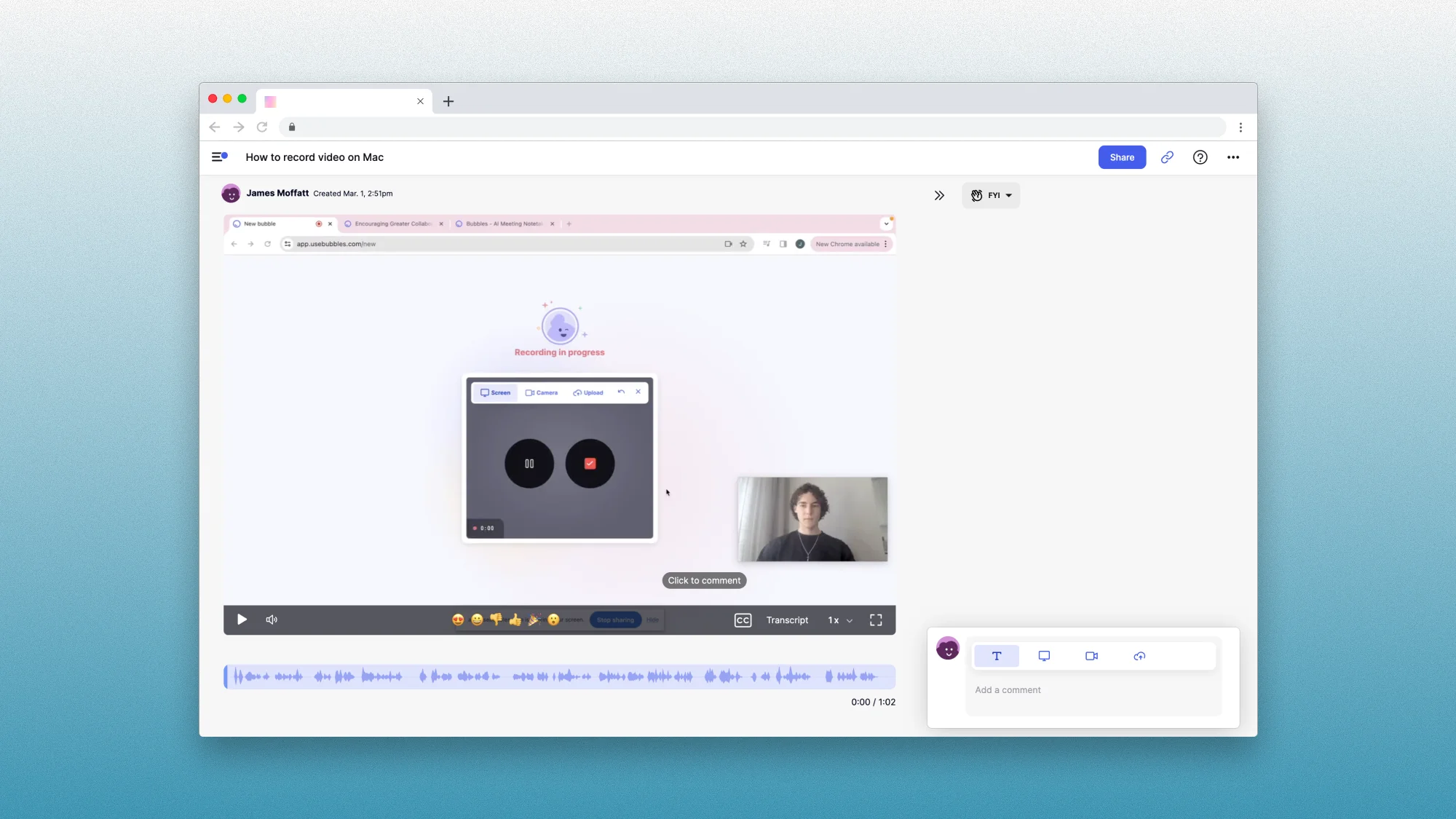
Pros:
AI meeting notetaker with automatic summaries and action items
"Much better than Loom" for async communication (user reviews)
Threaded video comments for contextual feedback
AI transcription accuracy - users rarely need edits
Easy CRM integration (copy/paste insights)
Simple Chrome extension
Competitive team pricing ($12/month for 3+ users)
Internal audio recording for complete system sound capture
Cons:
Very small review sample (only 9 G2 reviews) - difficult to assess reliability
Serious complaint about unauthorized emails (0/5 review: automated emails sent to clients without permission)
Free plan bubbles lock/expire after 2 weeks
30-minute recording limit on free tier
Only 5 meeting recordings per week on free tier
Occasional slow loading (user reports)
No mobile/desktop apps (browser-based only)
Reduced simplicity after feature additions
Bubbles pricing plans:
Plan | Price | Recording Length | Meetings/Week | Bubble Expiration | Best For |
|---|---|---|---|---|---|
Basic | Free | 30 mins | 5 | Lock after 2 weeks | Testing, light use |
Pro Personal | $18/month | Unlimited | Unlimited | Never | Freelancers (1-2 users) |
Pro Teams | $12/month | Unlimited | Unlimited | Never | Teams (3+ users) |
All plans include: Unlimited screen recordings, AI summaries, automatic notetaker
Pro plans add: Full AI transcripts, unlimited channels, custom branding, control over which meetings to join
Free trial: 14 days for Pro plans
Bottom line: Bubbles positions itself as a Loom alternative focused on async collaboration with AI meeting notes. Users praise the notetaker accuracy and async communication workflow. However, the tool has only 9 G2 reviews (compared to hundreds for competitors), making it difficult to assess long-term reliability. Most concerning is a 0/5 review describing automated emails being sent to meeting participants without user permission. The free plan is quite limited, pushing most serious users to Pro plans. Pro Teams pricing ($12/month for 3+ users) is competitive, but with such a small review base and a serious complaint about unwanted automated emails, proceed with caution.
Claap
At a glance:
Platforms: Browser-based (Chrome extension) + desktop app
Price: Free (limited) | Pro from $32/month (yearly) | Business $60/month (yearly)
Free plan: Yes (10 videos, 300 mins total recording time)
Best for: Remote teams and sales orgs needing AI meeting notes with async video collaboration
User rating: 4.7/5 stars on G2 (based on 357 reviews as of January 2026)
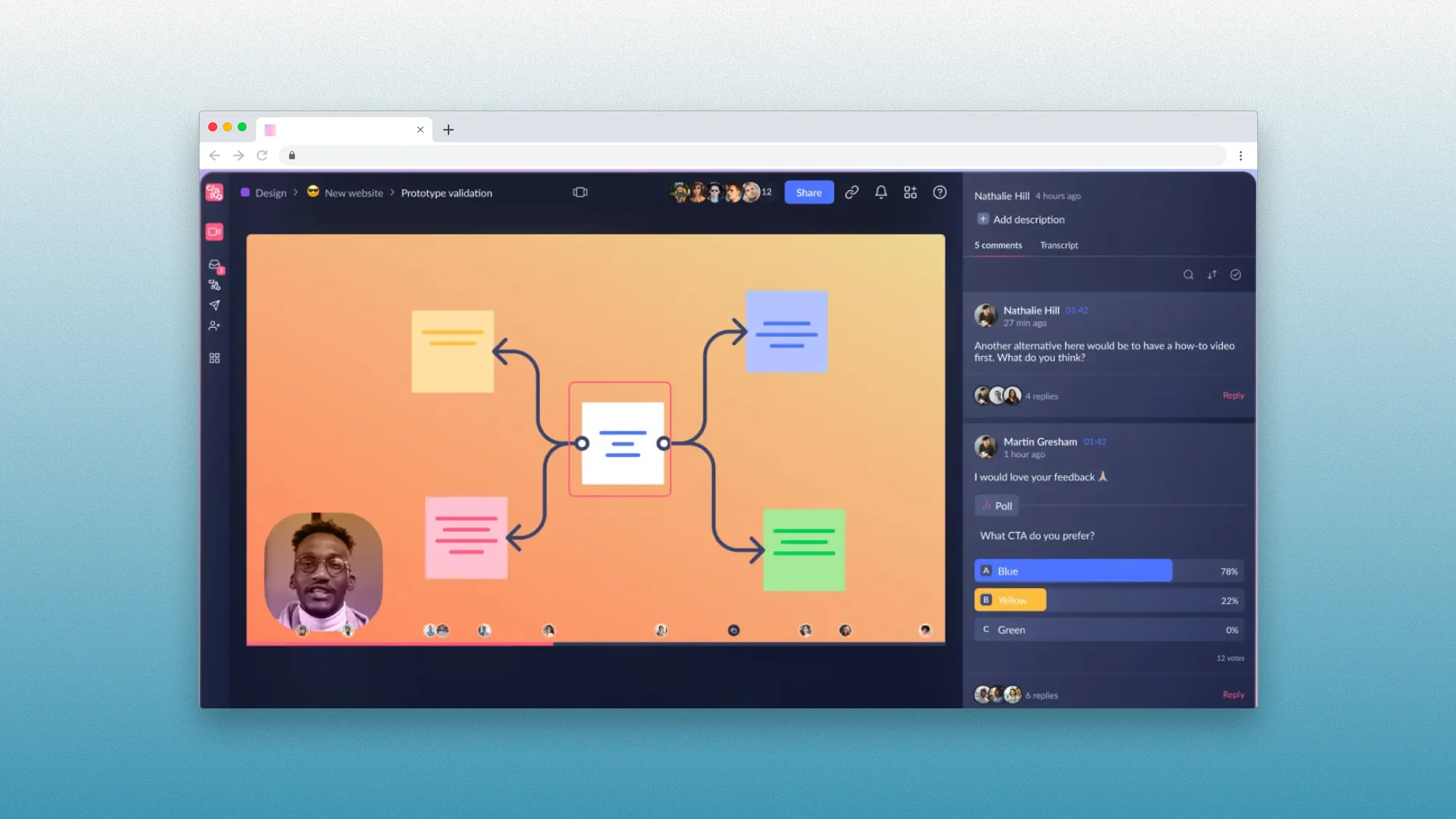
Pros:
Strong review base (357 G2 reviews - one of the most-reviewed in this comparison)
Ease of use is the #1 praised feature (151 mentions)
AI summaries "almost always accurate" with clear action items separation
Turns 45-minute calls into useful, structured notes quickly
Async collaboration with timestamped comments
Significant time-saver (124 user mentions)
Excellent for team collaboration (103 mentions)
CRM auto-complete on Business plan (auto-fills Salesforce/HubSpot after calls)
AI coaching for sales teams
Clean, simple dashboard
Internal audio recording for complete meeting capture
Cons:
Recording limitations on free tier (only 10 videos, 300 mins total)
Pro plan has 1,000 min/month cap (Business has unlimited)
Transcription struggles with accents or overlapping speakers
AI summaries occasionally miss nuanced discussion points
Video processing slow for longer recordings
UI navigation becomes clunky with many videos
Limited export options (no direct Notion/Google Docs export)
Mobile experience slower than desktop
Calendar sync on free tier confusing (pushes users to upgrade)
Claap pricing plans:
Plan | Yearly Price | Monthly Price | Videos | Recording Time | Best For |
|---|---|---|---|---|---|
Basic | Free | Free | 10 per user | 300 mins total | Testing, light use |
Pro | $32/month | $40/month | Unlimited | 1,000 mins/month | Teams & leaders |
Business | $60/month | $75/month | Unlimited | Unlimited | Sales teams |
Save 20% with yearly billing
All plans include: Calendar sync, 99-language transcription, basic AI summaries, Chrome extension, collaborative workspace
Pro unlocks: Advanced AI summaries, meeting insights, AI video editing, 10+ integrations, speaker insights, private channels
Business unlocks: CRM auto-complete, AI-generated emails, AI coaching, deal insights, "Ask Anything" AI, smart tables, priority support
Enterprise (custom pricing): Adds SSO, SCIM provisioning, unlimited basic licenses, white-glove onboarding, migration support, API access
Bottom line: Claap is one of the most highly-rated tools in this comparison (4.7/5 from 357 G2 reviews), earning particular praise for ease of use (151 mentions) and time-saving capabilities (124 mentions). Users consistently describe AI summaries as "almost always accurate," turning rambling calls into structured notes with clear action items. However, the free tier is quite limited (10 videos, 300 mins total), and even the Pro plan caps recording time at 1,000 mins/month—only Business tier ($60/month yearly) offers unlimited recording. Best for remote teams and revenue organizations who prioritize AI meeting notes and async communication.
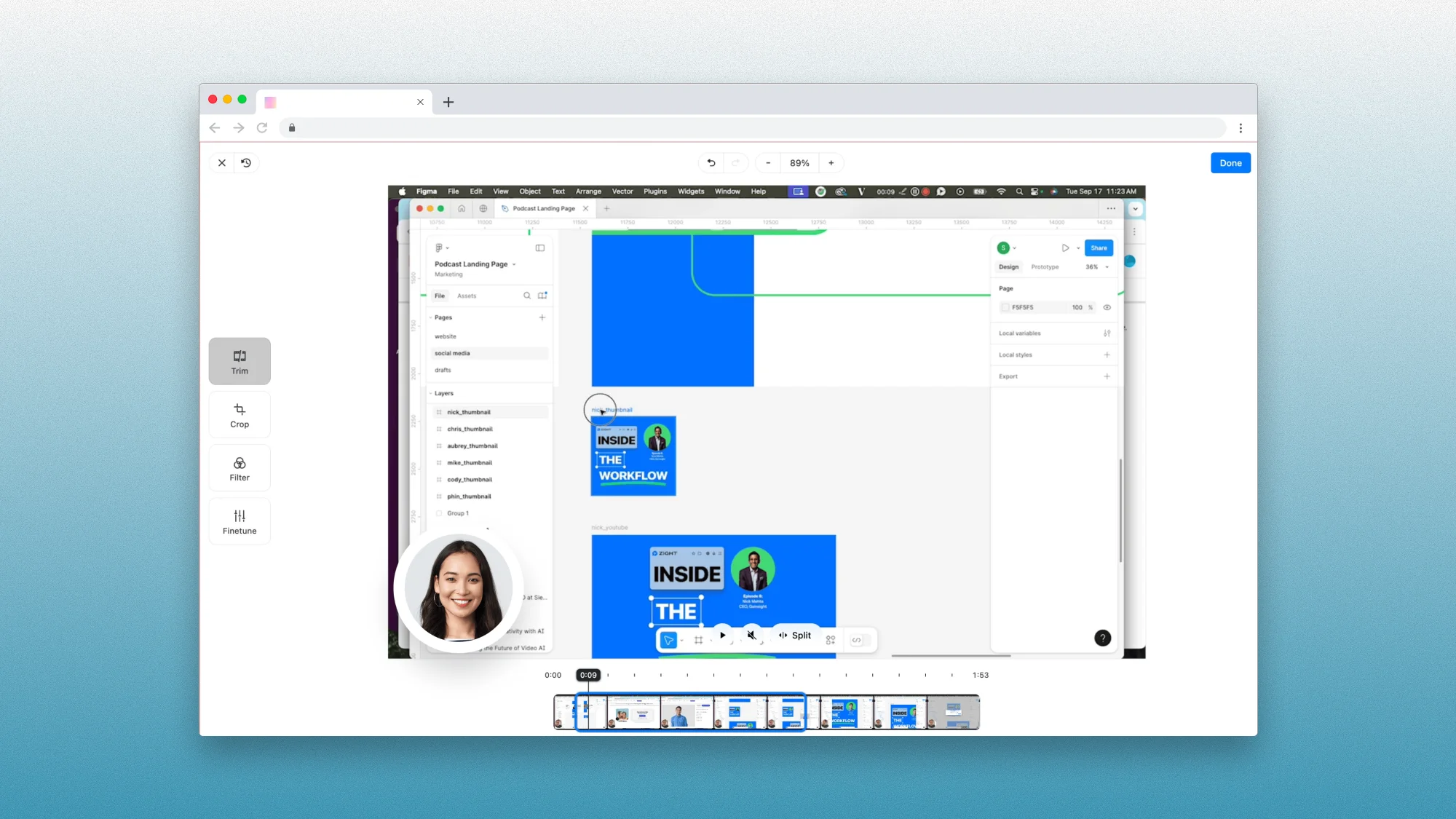
CloudApp / Zight
At a glance:
Platforms: Windows, Mac, iOS (no Android support)
Price: Free (limited) | Pro $9/month | Team $11/user/month
Free plan: Yes (5-min recordings, 720p quality, last 50 uploads only)
Best for: Screenshot workflows, customer support teams, visual documentation
User rating: 4.6/5 stars on G2 (based on 1,231 reviews as of January 2026)
Pros:
Highest review count in this comparison (1,231 G2 reviews - more than any other tool)
Long-established tool (users report 10+ years of reliable use)
Ease of use is #1 praised feature (11 mentions)
Quick screenshot-to-link workflow (drag file → instant shareable link)
Excellent security (host on own servers, password-protect captures)
Collections feature great for building visual knowledge bases
Strong desktop support (Mac + Windows apps)
"Looking for an alternative to Loom, this is it!" (user review)
Competitive pricing ($9/month for Pro vs Loom's $12.50/month)
Customer support consistently praised as "fantastic" and "responsive"
Custom domain support for capture URLs
Internal audio recording on paid plans
Cons:
No Android support (iOS only for mobile - major limitation)
All AI features are paid add-ons (transcription, captions, summaries cost extra)
Free tier very limited (5-min recordings, 720p only, last 50 uploads only)
Link issues reported (4 mentions in reviews)
Mobile compatibility problems (3 mentions)
"A lot of clicks to download an item"
File management in Collections needs improvement
No web-based option (requires app installation)
Dropdown captures can miss elements (common issue across screen capture tools)
Zight pricing plans:
Plan | Price | Recording Length | Quality | Upload History | AI Features | Best For |
|---|---|---|---|---|---|---|
Free | $0 | 5 mins | 720p | Last 50 only | ❌ | Light use, testing |
Pro | $9/month | Unlimited | 4k | Unlimited | Add-On | Individual creators |
Team | $11/user | Unlimited | 4k | Unlimited | Add-On | Teams (2+ users) |
All plans include: Desktop apps (Windows & Mac), iOS mobile app, Chrome extension, link sharing, collections/folders, basic analytics
Pro unlocks: Unlimited recording time, 4k quality, unlimited uploads, annotations, video editing (trim, split, merge), blur/redact sensitive content, advanced analytics
Team unlocks: Team workspace for guides/docs/request videos, engagement analytics (viewer emails, % viewed), centralized billing & user management Enterprise (custom pricing): SSO/SAML/SCIM, custom data retention, SOC II Type 2 + HIPAA compliance, priority support, audit controls
⚠️ Important: All AI features (automatic transcription, captions, summaries, titles) are paid add-ons across all plans - not included in base pricing. This differs from competitors like Claap, Tella, and Bubbles where AI features are built into Pro tiers.
Bottom line: Zight (formerly CloudApp) is one of the most established and highly-reviewed tools in this comparison (4.6/5 from 1,231 G2 reviews—the highest review count). Users with 10+ years of experience praise its reliability, ease of use, and quick screenshot-to-link workflow that's particularly valuable for customer support teams building visual knowledge bases. Pro pricing ($9/month) is competitive and includes unlimited recording time with 4k quality. However, all AI features are paid add-ons, and the lack of Android support is a significant limitation. Best for teams already invested in Apple/Windows ecosystems who prioritize screenshot workflows and visual documentation over AI-powered transcription.
Best for Sales and Outreach
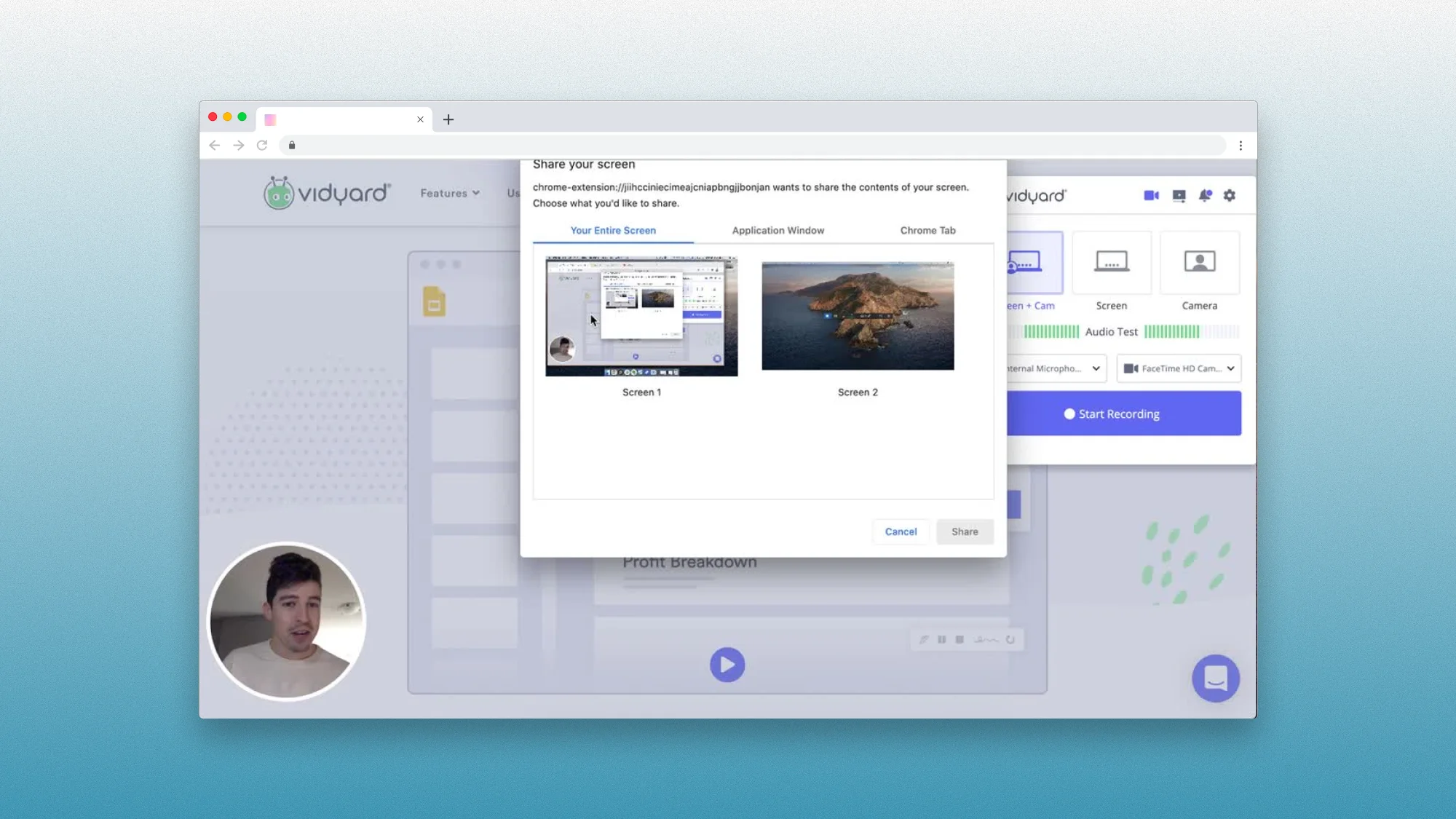
Vidyard
At a glance:
Platforms: Browser-based (Chrome extension) + desktop app + mobile app
Price: Free (very limited) | Starter $59/month (billed annually) | Teams custom pricing
Free plan: Yes (15 videos/month, 30-min recording limit, no hosting, no analytics)
Best for: Sales and marketing teams with budget for enterprise-grade video analytics
User rating: 4.5/5 stars on G2 (based on 831 reviews as of January 2026)
Pros:
Second-highest review count in this comparison (831 G2 reviews after Zight's 1,231)
Ease of use is #1 praised feature (54 mentions)
Excellent HubSpot integration for tracking emails and deals
Detailed viewer analytics (who watched, how long, when) enables smarter follow-ups
Easy sharing (37 mentions) with video thumbnails in links
Strong Gmail and Salesforce integrations
Personalized videos improve sales outreach capacity
Full analytics and team performance tracking on paid plans
Video Agent add-on for automated AI video creation
Internal audio recording for product demos
Cons:
Very expensive - Starter at $708/year per user (5.9x more than Zight, 3.9x more than Tella)
Cost is "the largest downside" - users explicitly switching to Loom as main tool due to price
Free tier extremely limited - only 15 videos/month (mistakes quickly exhaust quota)
No video hosting on free tier (unique limitation vs competitors)
No analytics on free tier (basic, insights, reporting all require paid plan)
Limited editing features (14 mentions) - "no real timeline editing or fancy transitions"
Browser extension can lag or take multiple tries to start
Mobile app stability issues
Embed options limited for websites
Video Agent (AI features) is paid add-on ($24/month extra)
Vidyard pricing plans:
Plan | Annual Price | Videos/Month | Recording Length | Hosting | Analytics | Best For |
|---|---|---|---|---|---|---|
Free | $0 | 15 | 30 mins | ❌ | ❌ | Testing only |
Starter | $708/year | Unlimited | Unlimited | ✓ | ✓ Full | Sales pros |
Teams | Custom | Unlimited | Unlimited | ✓ | ✓ Advanced | Sales teams (5+) |
Monthly pricing available at higher cost (Starter is $59/month when billed annually, 30% higher when billed monthly)
Free includes: 15 videos/month, 30-min recording limit, custom thumbnails, 15 AI videos, limited integrations
Starter unlocks: Unlimited videos, unlimited recording length, video hosting, full analytics, CTAs, branded sharing page, password-protected videos, folder management, custom backgrounds, internal audio recording
Teams unlocks: CRM/MAP integrations, advanced team analytics, custom CTAs, video captions, fully customizable branding, uploader widgets, video scheduling
Video Agent add-on: $24/month ($288/year) for unlimited AI videos, automated video creation and delivery
Bottom line: Vidyard is one of the most established and highly-reviewed tools in this comparison (4.5/5 from 831 G2 reviews, second only to Zight). Users praise its ease of use and excellent HubSpot/Salesforce integrations for sales workflows. The detailed viewer analytics enable much smarter follow-ups than generic video tools. However, Vidyard is significantly more expensive than competitors—Starter at $708/year per user, with reviewers explicitly mentioning cost as "the largest downside." The free tier is unusually restrictive (only 15 videos/month, no hosting, no analytics). Best for sales and marketing teams with enterprise budgets who need detailed viewer analytics and CRM integrations.
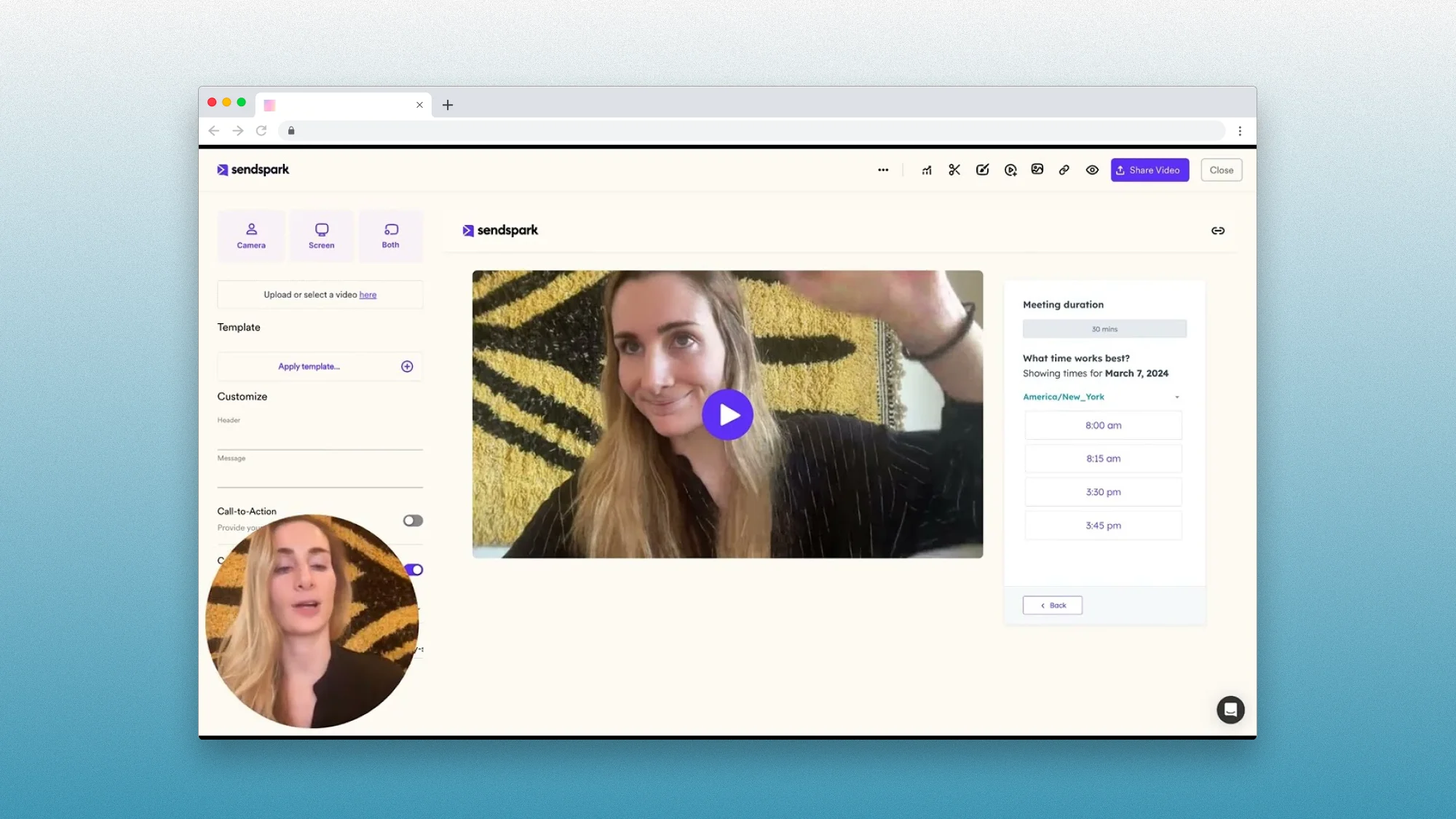
Sendspark
At a glance:
Platforms: Browser-based (Chrome extension) + desktop app
Price: Solo $49/month | Growth $99/month | Team $299/month | Business $699/month
Free plan: None (no free tier or trial - must pay to test)
Best for: Sales and marketing teams doing AI-powered personalized video outreach at scale
User rating: 4.7/5 stars on G2 (based on 372 reviews as of January 2026)
Pros:
Highest 5-star percentage (89% of 372 reviews are 5 stars)
"Outstanding support"—customer service consistently praised as "stellar"
AI personalization at scale for sales/recruiting workflows
Excellent integrations: Clay, HubSpot, Lemlist, Pipedrive, Qwilr, Salesforce, n8n
"Easier to use and no lag compared to Loom" (direct comparison review)
Dynamic video backgrounds and AI name personalization included
Agentic workflows for automation (7,500-75,000 tasks depending on plan)
Analytics show who watched, when, and how much
API/webhook access on Growth+ plans for custom workflows
Internal audio recording for product demos
Cons:
No free plan or trial—must pay $49/month minimum to test (major barrier vs competitors)
"They Make It Difficult To Quit" (1.5/5 review)—can't downgrade yourself, must contact support
Zapier integration requires upgrade even from paid Solo plan
UK/international customer support limited
Setup "more complex than expected" (2 mentions of difficult/complex setup)
AI voice cloning sensitive to audio quality (low volume/static affects output)
Videos "take a long time for the finished video to load"
No speaking notes feature for scripts/outlines
Embedding sends viewers to Sendspark's branded page (not direct video)
Sendspark pricing plans:
Plan | Price | Seats | Video Limit | AI Credits | Agentic Workflows | Best For |
|---|---|---|---|---|---|---|
Solo | $49/mo | 1 | 5,000 | 100 | ❌ | Individuals |
Growth | $99/mo | 3 | 20,000 | 250 | 7,500 tasks | Growing teams |
Team | $299/mo | 10 | 100,000 | 1,000 | 25,000 tasks | Established teams |
Business | $699/mo | 25 | Unlimited | 3,000 | 75,000 tasks | Enterprises |
Save up to 40% with annual billing
All plans include: Dynamic video backgrounds, AI name personalization, basic integrations, email support, analytics
Growth unlocks: Multiple AI variables, advanced integrations (Salesforce, HubSpot), agentic workflows (7,500 tasks), API/webhook access, custom logo & domain
Team unlocks: Guided workflow setups, dedicated onboarding, admin dashboard, 25,000 agentic workflow tasks
Business unlocks: Live support via Slack, dedicated account manager, video boot camp training, 75,000 agentic workflow tasks
Bottom line: Sendspark earns the highest 5-star percentage in this comparison (89% of 372 G2 reviews are 5-star), with users praising "outstanding support" and AI personalization at scale for sales/recruiting workflows. The platform excels at integration-heavy use cases, working flawlessly with Clay, HubSpot, Lemlist, Pipedrive, and Salesforce for automated outreach sequences. However, Sendspark is the only tool in this comparison with no free plan or trial—you must pay $49/month minimum just to test it. Best for sales/marketing teams with budget ($99+/month Growth plan recommended for teams) who need AI video personalization at scale integrated into Clay/HubSpot workflows.
Best Loom Alternative by Platform
Best for Mac
Screen Studio — The gold standard for polished Mac demos with automatic zoom, smooth cursor, and motion blur. One-time purchase, 4.9/5 rating. Perfect for product demos and social media content.
QuickTime Player — Built into every Mac, free, simple one-click recording. No advanced features, but gets the job done for quick tutorials without installing anything.
ScreenFlow — Professional editing with timeline, iOS screen capture, and multi-track support. Mac-only, $149 one-time purchase. Best for serious tutorial creators.
Tella — Browser-based with Mac desktop app option. Beautiful layouts, AI editing, competitive pricing at $15/month. Great Loom alternative for entrepreneurs.
Best for Windows
FocuSee — Brings Screen Studio-style polish to Windows with AI auto-edit, auto-chapters, and customizable effects. $50/year one-time purchase.
ShareX — 100% free, open-source powerhouse for Windows power users. Extremely versatile with customizable workflows, but dated interface and steep learning curve.
ScreenPal — Affordable cross-platform option at $4/month. 15-min free recordings, easy editing, works on Windows/Mac/Chromebook. Budget-friendly for educators.
Supercut — Premium Windows/Mac native app with AI-powered auto-edit and 4K recording. $15/month for high-end, polished videos.
Best Cross-Platform
Talki — Browser-based, works on any device. Free, unlimited recording + unique ability to collect video responses. No installation required.
OBS Studio — Free, open-source professional broadcasting software. Works on Windows, Mac, Linux. Steep learning curve but unmatched control.
Vmaker — Windows, Mac, Chrome extension. Built-in editor with AI features. $18/month for practical use (free tier very limited).
Camtasia — Industry-standard for Windows/Mac tutorial creation. $179.88/year for watermark-free exports. Most-reviewed tool in this comparison (1,631 reviews).
Best for Professional Editing
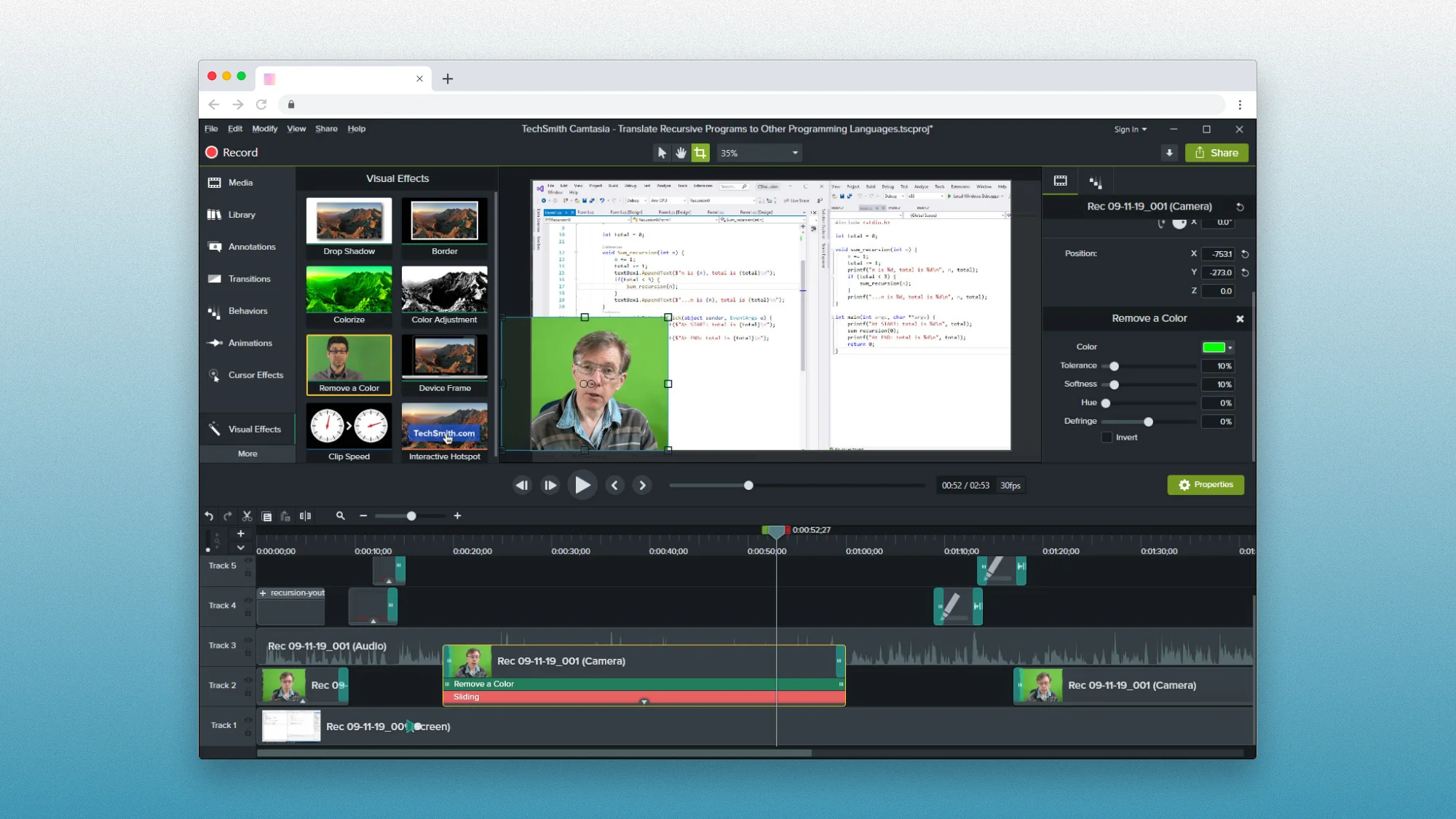
Camtasia
At a glance:
Platforms: Windows, Mac (desktop apps)
Price: Starter $39/year | Essentials $179.88/year | Create $249/year | Pro $599/year
Free plan: None (free trial available)
Best for: Tutorial creators, educators, and training professionals who need reliable screen recording + editing in one tool
User rating: 4.6/5 stars on G2 (based on 1,631 reviews as of January 2026)
Pros:
HIGHEST review count in entire comparison (1,631 G2 reviews - more than any other tool)
Ease of use is the #1 praised feature (295 mentions - far more than any other pro)
Long-time users remain loyal - "A Decade of Excellence," "still the easiest editor I've used"
Perfect for tutorials, training videos, webinars, educational content
Intuitive interface - "never felt like I needed to be a professional editor"
Excellent screen recording with cursor effects, annotations, zoom features
Drag-and-drop timeline with built-in transitions, animations
Audiate integration for text-based editing (remove "ums," "ahs," filler words)
Cross-platform (Mac + Windows) with site licenses for educational institutions
One-stop solution: record and edit in same window (vs OBS Studio + separate editor)
Comprehensive features without overwhelming complexity
Reliable and stable for most use cases
Internal audio recording with system sound capture
Cons:
Expensive (48 mentions—#1 con)—pricing feels high compared to competitors
Starter plan watermarked—all exports have watermark until $179.88/year Essentials plan
Performance issues with large projects—"preview screen tends to lag significantly"
Requires powerful PC—"demands a lot of RAM and CPU" especially for 4K/60fps
Slow rendering (43 mentions)—"extremely long time," particularly high-resolution projects
Editor crashes/freezes—"randomly closes, shuts down, or becomes unresponsive"
No auto-save—can lose work when crashes occur
Feature limitations (45 mentions)—lacks advanced creative controls for cinematic work
Learning curve (43 mentions)—not instant mastery despite ease of use
Limited cropping—must expand video beyond screen to zoom
Camtasia pricing plans:
Plan | Price | Watermark | Audiate | AI Features | Stock Assets | Best For |
|---|---|---|---|---|---|---|
Starter | $39/year | ✓ Yes | ❌ | ❌ | ❌ | Testing only |
Essentials | $179.88/year | ❌ | ✓ | ❌ | ❌ | Tutorials |
Create | $249/year | ❌ | ✓ | ✓ AI voice/scripts | ❌ | Creators |
Pro | $599/year | ❌ | ✓ | ✓ + Avatars | ✓ 100M+ | Enterprises |
All plans include: Camtasia Editor, Camtasia Snagit, unlimited screen/camera/audio recording, filters/transitions, zoom/pan, quizzes/SCORM export
Essentials unlocks: Watermark removal (critical), Camtasia Audiate, text-based video editing, filler word removal, speech-to-text transcription, unlimited caption generation
Create unlocks: AI script generation from prompts, AI voiceover generation (200+ voices), voice mood/speed/accent customization, script translation, multi-language support
Pro unlocks: Avatar generation (49 unique styles), audio dubbing, transcript generation, script translation, 100M+ premium royalty-free stock assets, customizable brand assets, share unlimited videos
Plans are non-transferable (cannot resell or transfer license)
Bottom line: Camtasia is the most established and widely-reviewed tool in this entire comparison (4.6/5 from 1,631 G2 reviews—the highest review count). Ease of use is the #1 praised feature with 295 mentions—users consistently describe it as "the easiest editor" even after decades of alternatives emerging. The all-in-one approach (record + edit in same window) particularly appeals to tutorial creators, educators, and training professionals. However, Camtasia is expensive with Starter plans watermarked ($39/year) and the first watermark-free tier costing $179.88/year. Performance issues plague users working with large projects or 4K/60fps video. Best for tutorial creators, educators, trainers, and corporate learning departments who prioritize reliability and ease of use over advanced creative controls.
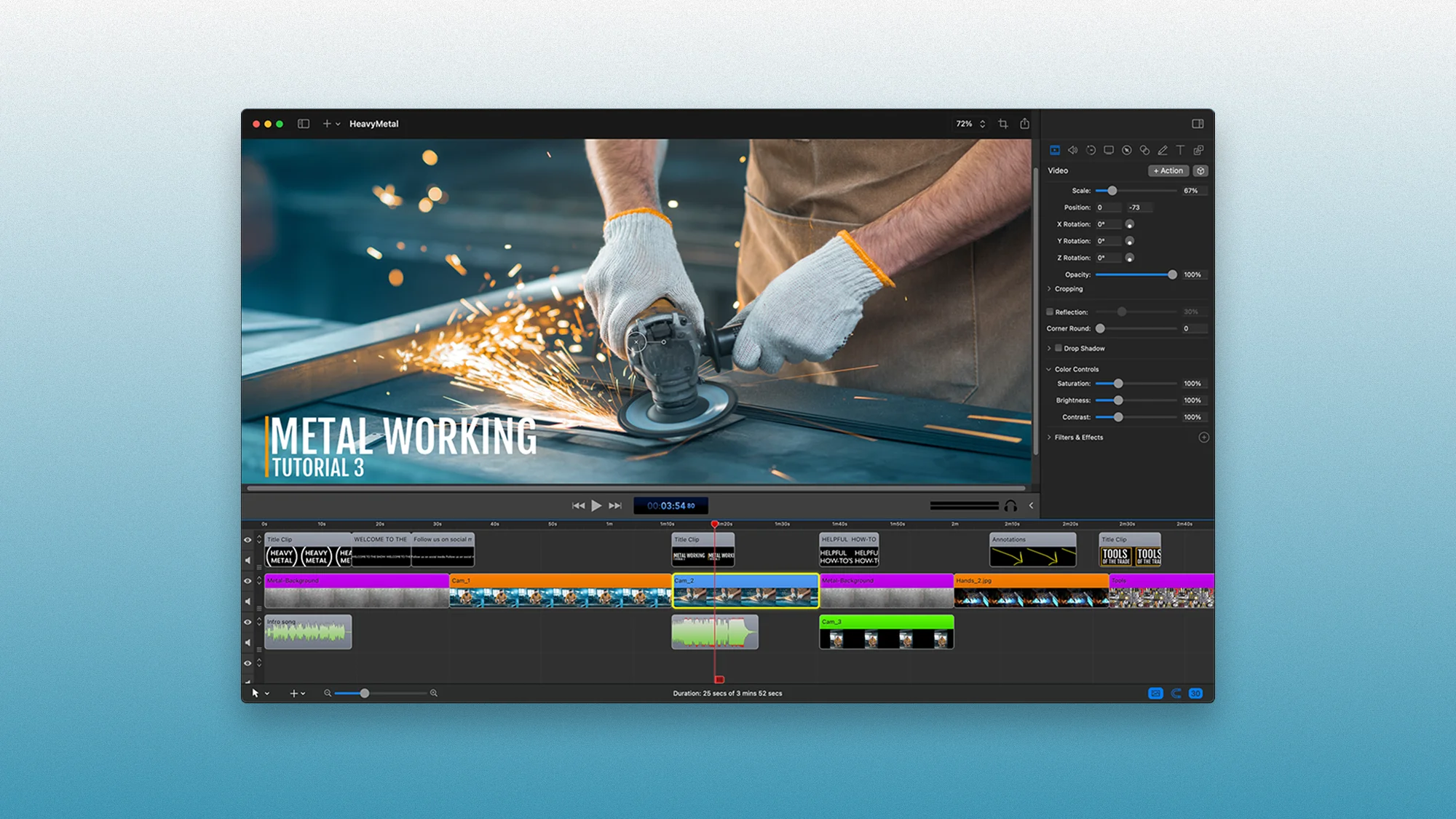
ScreenFlow
At a glance:
Platforms: Mac only (macOS exclusive - not available on Windows or Linux)
Price: One-time purchase (perpetual license) - exact pricing not publicly listed, contact for quote
Free plan: Free trial available
Best for: Mac users creating tutorials, educational videos, and screen recordings who need professional editing capabilities
User rating: 4.5/5 stars on G2 (based on 56 reviews as of January 2026)
Pros:
Professional video capturing and editing capabilities
"By far the easiest and most user-friendly video editing tool I've used" (user review)
Wide array of editing possibilities (animation, keypoints, zoom effects)
Can export different sources separately (webcam, display, audio tracks independently)
Simple, user-friendly interface that's easy to learn
Great for tutorials, educational videos, and screen recordings
Records iPhone screen live with rotation support
Flawless screen capture with amazing resolution/compression quality
Multiple layers capability—layer videos above/beneath each other
Rapid crop and layer features
Can capture specific screen areas (not just full window)
One-time purchase (perpetual license, not subscription)
Internal audio recording for system sounds
Cons:
Mac-only—not available on Windows or Linux (major limitation for cross-platform teams)
VERY SMALL review base—only 56 G2 reviews (third-smallest in comparison)
Negative reviews about update costs—users report paying for updates and bug fixes
Outdated user interface
Lack of autozoom/follow feature (no automatic cursor tracking)
Limited animation possibilities
Missing advanced features (tracking, advanced color management)
Can crash (though "always recovers")
Complex for some users
Lacks fancy features/effects compared to Adobe Suite
ScreenFlow pricing:
$149 one-time purchase (perpetual license). Educational pricing available at $104. Major version upgrades available at reduced cost ($99) every 2-3 years. Includes free updates within the major version.
Bottom line: ScreenFlow earns 4.5/5 from 56 G2 reviews, but this small review base raises reliability concerns. Mac users praise it as "the easiest and most user-friendly video editing tool" for tutorial creation. The professional video capturing, simple interface, and ability to export sources separately make it particularly appealing for educators. Screen capture quality is "flawless" with "amazing resolution/compression." However, ScreenFlow is Mac-exclusive (no Windows or Linux versions), which is a dealbreaker for cross-platform teams. The one-time $149 purchase is attractive, but users report paying for major version updates. Best for Mac-only users who need professional tutorial/educational video creation and can afford the one-time purchase plus occasional update costs.
Descript
At a glance:
Platforms: Mac, Windows (desktop app; cloud collaboration)
Price: Free (very limited) | Creator $12/month | Pro $24/month
Free plan: 1 hour of recording/transcription per month, 1 watermark-free 720p export (additional videos have watermark)
Best for: Content creators needing advanced editing with screen recording
User rating: 4.6/5 on G2 (573+ reviews) and 4.8/5 on Capterra (170+ reviews)
Pros:
Edit videos by editing text (auto transcription with ~90% accuracy)
Powerful AI tools like Overdub voice cloning, filler word removal, and auto-captioning
All-in-one editor for podcasts and videos with multi-track support and stock media library
Internal audio recording for complete system sound capture
Collaborative editing for teams
Cons:
Free plan is very limited (only 1 hour media, then upsell)
Steeper learning curve for those used to simpler recorders
No mobile app; must use desktop or web for editing
Slower than simple recorders for quick videos
Descript key features:
Feature | Free | Creator ($12/mo) | Pro ($24/mo) |
|---|---|---|---|
Recording/transcription | 1 hour/month | 10 hours/month | 30 hours/month |
Watermark-free exports | 1 per month | Unlimited | Unlimited |
Quality | 720p | 1080p | 4K |
AI features | Limited | Overdub, filler removal | Full suite + Studio Sound |
Collaboration | View-only | Full editing | Full + advanced |
Internal audio | Yes | Yes | Yes |
Pricing overview: Creator plan at $12/month (annual) or $15/month (monthly). Pro plan at $24/month (annual) or $30/month (monthly).
Bottom line: Descript is a feature-packed tool best for creators who need professional editing (transcripts, audiogram, multicam) in their screen recordings—but overkill if you just want quick, simple video messages. The text-based editing workflow is revolutionary for long-form content but adds complexity for simple screen recordings. Best for podcast creators, video essayists, and content teams who need advanced editing capabilities.
Best for Collecting Video Feedback
Every tool above solves the sending problem—you record, you share, someone watches. But what happens when you need video back?
The Collection Problem
The Real Cost of Vague Feedback
I interviewed agency owners and freelancers about their feedback workflows. The same pattern emerged every time:
"I just onboarded two clients who were very picky on their site. I got these huge walls of text—probably took them longer to write than it would have taken to just talk through it on video. But I can't ask every client to learn Loom." — Owner, digital agency serving landscaping industry
"Communication is just Slack. If it needs to be recorded, we use Screen Studio. We do our best to avoid calls because clients don't know what they want until they're talking, and that becomes expensive real fast." — Designer at Indonesia-based agency with distributed team
"My clients can perfectly explain issues on Zoom, but when I ask them to email feedback, it's useless. 'This feels off' or 'can you make it pop?' I've learned to never ask for written feedback anymore." — Freelance product designer
The pattern was clear: clients can show problems easily but struggle to write about them. Most screen recorders only work one direction—and forcing clients to create accounts kills the whole workflow.
Most screen recorders require your recipient to have their own account, install software, or navigate a learning curve just to reply with video. That friction means they don't—so you're back to emails and calls.
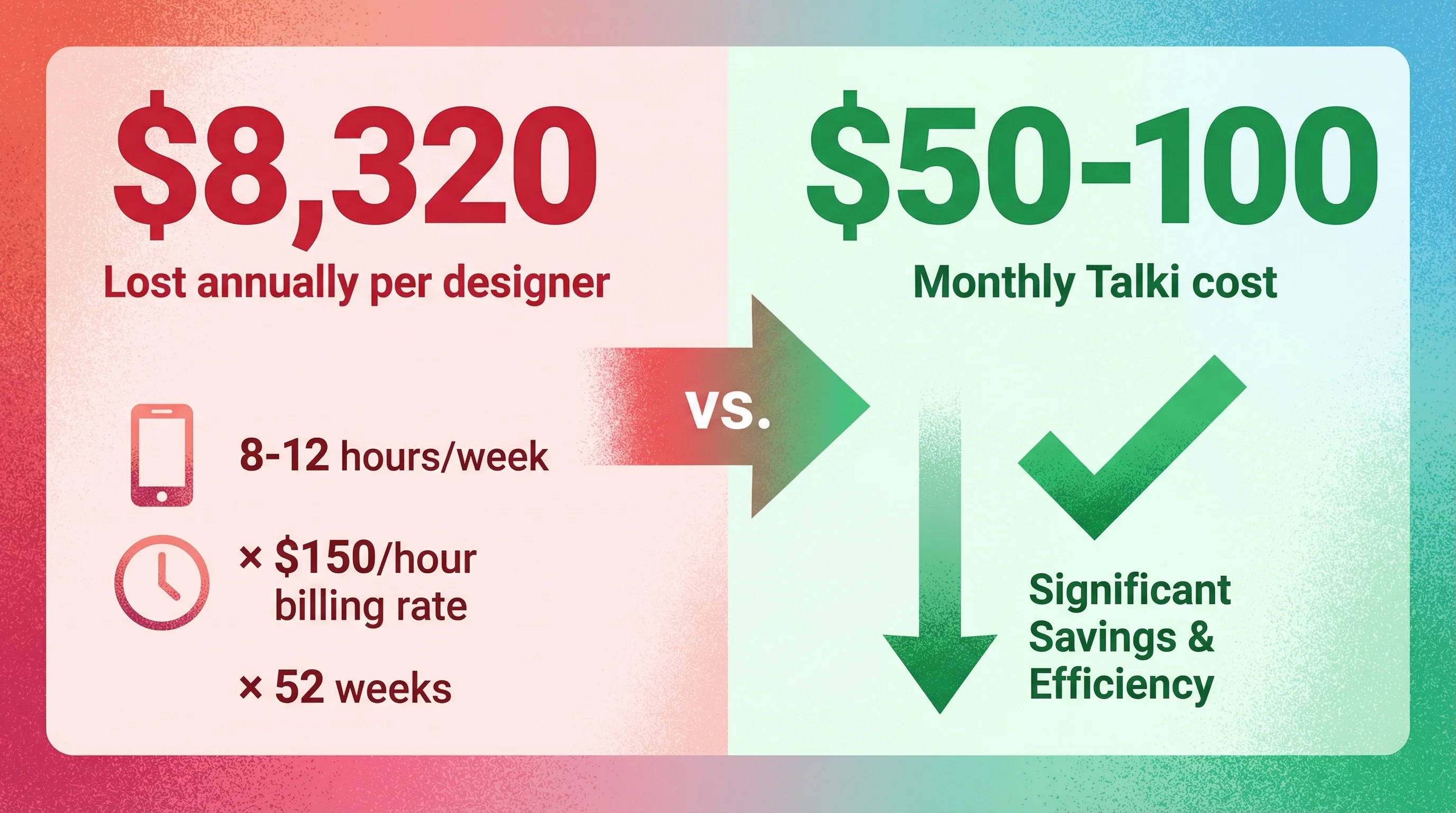
Why This Matters: The average design agency loses 8-12 hours per week to clarification calls and vague feedback emails. At $150/hour billing rate, that's over $8,000 in lost revenue annually per team member. Calculate your feedback costs.
This isn't a new problem. We've covered 7 methods for collecting customer feedback beyond surveys, but most solutions still rely on text-based responses. The breakthrough is enabling clients to show you what they mean without friction. Here's how to get client feedback that actually shows you their perspective.
Why Talki Is Different
You already saw Talki in the Free Alternatives section as a solid screen recorder. But here's what makes it unique across this entire list:
Talki lets you collect video, not just send it.
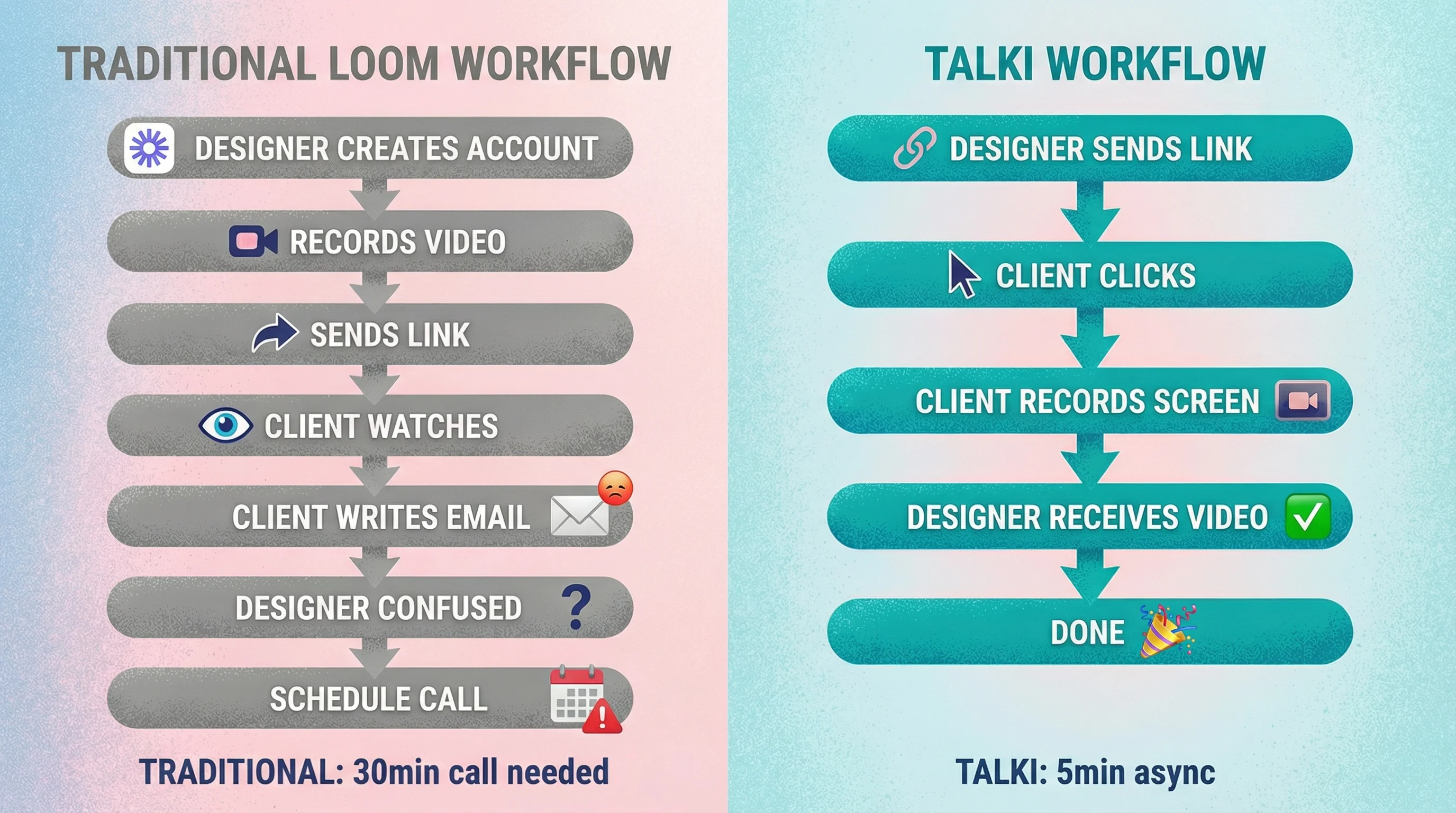
Send someone a Talki link and they can record their screen and voice showing you exactly what they mean. No account creation. No software installation. No "please download this app first." They click, record, and you get a video back.
This flips the typical async video workflow:
Agencies: Send one link, collect feedback from multiple stakeholders on a design
Product teams: Get user testing videos without scheduling calls
Consultants: Let clients show you their problem instead of describing it
Freelancers: Stop the "what do you mean by that?" email chains
The many-to-one model means you're not just recording at people—you're having visual conversations without the calendar chaos.
Best for: Anyone tired of scheduling calls to understand what "make it pop" actually means.
Learn more: How to collect video feedback from clients | Talki vs Loom: Which is right for you?
Honorable Mentions
These tools didn't make the main categories but deserve consideration for specific use cases:
Cap
Best for: Teams wanting open-source with no recurring fees
Platforms: Mac, Windows (beta), Web
Free Plan: Full functionality in beta; optional one-time $58 lifetime license for desktop app
Paid: $8.16/month (annual) or $12/month per user for Pro plan
Pros:
Open source with self-hosting option (own your data)
No watermarks or time limits on recordings (truly unrestricted)
Active development community and fast issue fixes
Cons:
Requires more technical setup and storage management than cloud tools
Windows version is still catching up (beta stage)
Fewer integrations out-of-the-box compared to established platforms
User Rating: 4.0/5 on Product Hunt (based on 5 reviews)
Bottom line: Best for teams who want full control over their video infrastructure and don't mind a steeper learning curve to leverage an open-source Loom alternative.
Guidde
Best for: Teams creating how-to guides and SOPs with AI assistance
Platforms: Web app (Chrome extension); Desktop recording not required
Free Plan: Create up to 25 video guides, web-only recording, all content watermarked
Paid: $16/month (annual) or ~$20/month (monthly) per creator for Pro (unlimited guides, watermark removal); Business plan at $35/month adds AI voice-overs and privacy controls
Pros:
AI-powered documentation (auto steps, text-to-speech voiceovers) speeds up tutorial creation
Easy sharing and embedding of step-by-step videos; integrates with tools like Zendesk
Branding and export options on paid plans (custom logos, MP4/GIF/PDF exports)
Cons:
Free tier is very limited (only 25 videos; no desktop app use; all videos carry Guidde branding)
Lacks advanced editing fine-tuning—designed more for quick guides than polished videos
Primarily browser-based: heavy reliance on internet connection and Chrome extension
User Rating: 4.8/5 on G2 (75+ reviews)
Bottom line: Best for organizations that need to churn out lots of simple, annotated how-to videos for training or support. Guidde excels at fast documentation, though serious video editors will find its feature set basic.
ScreenPal (formerly Screencast-O-Matic)
Best for: Educators and budget-conscious users needing basic recording/editing
Platforms: Windows, Mac, Chromebook, iOS, Android, Chrome extension
Free Plan: 15-minute recording limit per video (unlimited clips), no watermark on recordings; basic trimming and captions included
Paid: $4/month (billed annually) for Deluxe, or ~$5/month billed monthly (adds unlimited recording length, full video editor, system audio recording); $10/month annual for Max with AI features
Pros:
Very affordable—robust features for only a few dollars a month
Basic editing tools (cut, text, zoom) are easy to use for quick video cleanup
Cross-platform and mobile apps—record on nearly any device and share easily (hosting included)
Internal audio recording on paid plans
Cons:
Free version capped at 15 min and lacks certain captures (no system audio on free)
Dated interface and limited advanced editing compared to pricier tools
Some performance lag on long recordings
User Rating: 4.5/5 on G2 (130+ reviews)
Bottom line: ScreenPal is the go-to for simple screen recording on a shoestring budget. It covers the basics (and then some) at a fraction of competitors' prices—just don't expect flashy AI extras or heavy-duty editing without upgrading to higher tiers.
All Loom Alternatives Compared
Here's a comprehensive feature comparison to help you choose:
Feature | Talki | Screen Studio | Vmaker | Vidyard | Bubbles | ScreenRec | OBS | Screencastify | ShareX | QuickTime | FocuSee | Tella | Supercut | Claap | CloudApp | Sendspark | Camtasia | ScreenFlow | Descript | Cap | Guidde | ScreenPal |
|---|---|---|---|---|---|---|---|---|---|---|---|---|---|---|---|---|---|---|---|---|---|---|
Free plan | ✅ Unlimited | ❌ Trial only | ✅ Limited | ✅ 15/mo | ✅ Unlimited | ✅ Unlimited | ✅ Full | ✅ 10 total | ✅ Full | ✅ Built-in | ✅ 1 export | ✅ Limited | ❌ Trial | ✅ 10 total | ✅ Limited | ❌ None | ❌ Trial | ❌ Trial | ✅ 1hr/mo | ✅ Beta | ✅ 25 guides | ✅ 15min |
Max free recording | Unlimited | N/A | 1 min | 30 min | 30 min | Unlimited | Unlimited | 30 min | Unlimited | Unlimited | 1 export | Limited | N/A | 300 min | 5 min | N/A | N/A | N/A | 1 hour | Unlimited | 25 guides | 15 min |
Watermark on free | ❌ | N/A | ❌ | ❌ | ❌ | ❌ | ❌ | ❌ | ❌ | ❌ | ✅ | ✅ | N/A | ❌ | ✅ | N/A | N/A | N/A | ✅ | ❌ | ✅ | ❌ |
Auto-zoom/polish | ❌ | ✅ | ❌ | ❌ | ❌ | ❌ | ❌ | ❌ | ❌ | ❌ | ✅ | ❌ | ✅ | ❌ | ❌ | ❌ | ❌ | ❌ | ❌ | ❌ | ❌ | ❌ |
Collect video from others | ✅ | ❌ | ❌ | ❌ | ✅ | ❌ | ❌ | ❌ | ❌ | ❌ | ❌ | ❌ | ❌ | ❌ | ❌ | ❌ | ❌ | ❌ | ❌ | ❌ | ❌ | ❌ |
AI transcription | ❌ | ❌ | ✅ Paid | ✅ | ✅ | ❌ | ❌ | ✅ Paid | ❌ | ❌ | ✅ Paid | ✅ Paid | ✅ | ✅ | ❌ | ❌ | ✅ Paid | ❌ | ✅ | ❌ | ✅ | ❌ |
Team collaboration | ❌ | ❌ | ✅ Paid | ✅ | ✅ | ❌ | ❌ | ❌ | ❌ | ❌ | ❌ | ✅ Paid | ❌ | ✅ | ✅ Paid | ✅ Paid | ❌ | ❌ | ✅ Paid | ✅ | ✅ Paid | ❌ |
CRM integrations | ❌ | ❌ | ❌ | ✅ | ✅ | ❌ | ❌ | ❌ | ❌ | ❌ | ❌ | ❌ | ❌ | ✅ | ❌ | ✅ | ❌ | ❌ | ❌ | ❌ | ✅ | ❌ |
Timeline editing | ❌ | ❌ | ✅ | ❌ | ❌ | ❌ | ✅ | ✅ | ❌ | ❌ | ✅ | ✅ | ❌ | ❌ | ❌ | ❌ | ✅ | ✅ | ✅ | ❌ | ❌ | ✅ |
Mobile apps | ✅ Web | ❌ | ❌ | ✅ | ❌ | ❌ | ❌ | ❌ | ❌ | ❌ | ❌ | ✅ | ❌ | ❌ | ✅ | ❌ | ❌ | ❌ | ❌ | ❌ | ❌ | ✅ |
No install required | ✅ | ❌ | ❌ | Ext | Ext | ❌ | ❌ | Ext | ❌ | ✅ Built-in | ❌ | ✅ Web | ❌ | ✅ Web | ❌ | Ext | ❌ | ❌ | ❌ | ✅ Web | Ext | Ext |
Windows support | ✅ | ❌ | ✅ | Ext | Ext | ✅ | ✅ | Ext | ✅ | ❌ | ✅ | ✅ | ✅ | ✅ | ✅ | Ext | ✅ | ❌ | ✅ | ✅ | Ext | ✅ |
Mac support | ✅ | ✅ | ✅ | Ext | Ext | ✅ | ✅ | Ext | ❌ | ✅ | ✅ | ✅ | ✅ | ✅ | ✅ | Ext | ✅ | ✅ | ✅ | ✅ | Ext | ✅ |
Internal audio | ✅ | ✅ | ✅ | ✅ | ✅ | ✅ | ✅ | Paid | ✅ | ❌ | ✅ | ✅ | ✅ | ✅ | Paid | ✅ | ✅ | ✅ | ✅ | ✅ | ✅ | Paid |
Starting price | Free | $108/yr | $18/mo | $59/mo | $12/mo | Free | Free | $7/mo | Free | Free | $50/yr | $15/mo | $15/mo | $32/mo | $9/mo | $49/mo | $179.88/yr | $149 once | $12/mo | $8.16/mo | $16/mo | $4/mo |
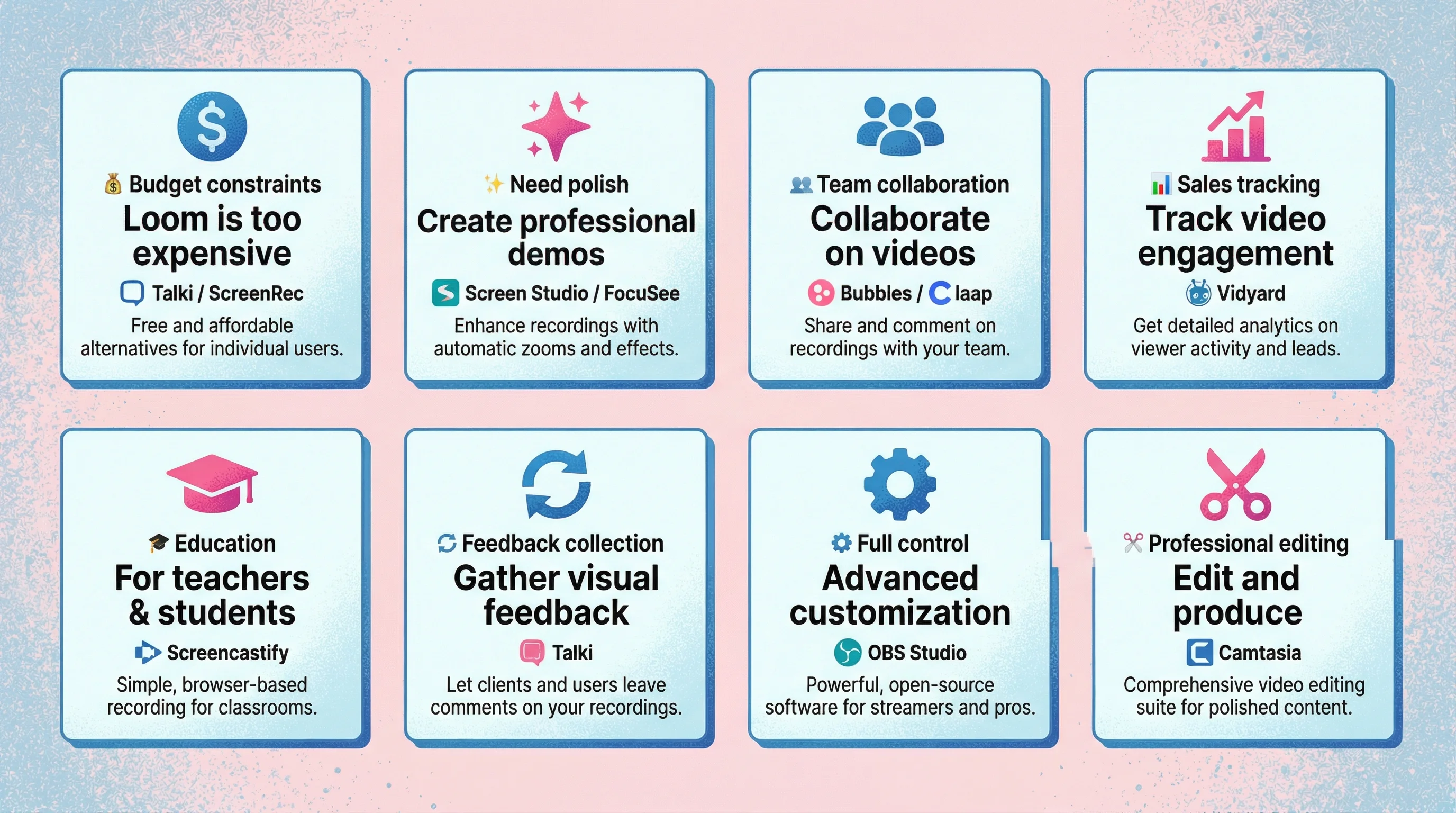
How to Choose the Right Alternative
Pick based on your actual problem:
Your Problem | Best Solution | Why |
|---|---|---|
"Loom is too expensive" | Talki, Vmaker, ScreenRec, ShareX | All offer generous free tiers with no catch |
"I want free recording without installing anything" | Talki | Browser-based, works on any device |
"I want my recordings to look professionally edited" | Screen Studio (Mac), FocuSee (Windows/Mac), Supercut | Automatic polish without editing skills |
"I need my team to comment on specific moments" | Bubbles, Claap | Built for collaborative async review |
"I need to track if prospects watch my videos" | Vidyard, Sendspark | Sales-focused with engagement analytics |
"I need polished tutorial videos with full editing" | Camtasia, ScreenFlow, Descript, Tella | Professional editing without steep learning curve |
"I need to collect video feedback from clients" | Talki | Only tool designed for collecting video, not just sending |
"I want full control, don't mind complexity" | OBS Studio | Professional broadcast-quality, completely free |
"I'm in education and live in Chrome" | Screencastify, ScreenPal | Dominates K-12 and higher ed for good reason |
"I need quick screenshots + video in one tool" | CloudApp/Zight | Versatile capture for mixed media workflows |
"I need to record system audio (internal audio)" | OBS Studio, ScreenRec, Screen Studio, Talki | Full system sound capture for demos |
"I need open-source with no recurring fees" | Cap, ShareX, OBS Studio | Own your data, no subscriptions |
"I need AI-powered documentation" | Guidde, Descript | Auto-generate steps, voiceovers, captions |
"I'm on Windows and want the cheapest option" | ShareX (free), ScreenPal ($4/month) | Budget-friendly with solid features |
"I'm on Mac and want something built-in" | QuickTime | Free, already installed, simple |

Frequently Asked Questions
What's the difference between feedback collection tools, screen recorders, and video feedback tools?
Great question. Screen recorders like Loom let you send videos. Video feedback tools let you collect video responses. And feedback collection tools cover everything from forms to async video. We broke down how forms, video, and async feedback compare if you want to understand which approach fits your workflow.
Is there a free version of Loom?
Yes. Loom's free plan includes 25 videos up to 5 minutes each. If you need longer recordings or more videos, Talki offers unlimited free recording with no time limits, ScreenRec has no limits at all (Windows/Mac/Linux), and ShareX is 100% free forever (Windows-only).
What's the best completely free Loom alternative?
Talki offers unlimited recording with no time limits, no watermarks, and no video caps—all browser-based so it works on any device. Unlike most "free" tools, there's no 5-minute ceiling or forced upgrades for basic use. ScreenRec is also completely free but only supports Windows and Linux (Mac version in development).
What's the best Loom alternative for Mac?
For polished product demos, Screen Studio is unmatched—it makes your recordings look professionally edited automatically ($108/year). For free and simple with no installs, Talki runs in any browser. QuickTime is built into every Mac (free, basic features). For full editing capability, ScreenFlow ($149 one-time) offers professional tools including iOS screen capture.
What's the best Loom alternative for Windows?
FocuSee brings Screen Studio-style polish to Windows with AI editing and auto-captions ($50/year). For free options, ShareX is 100% free open-source with incredible customization, ScreenRec offers unlimited recording, and Talki works in any browser. ScreenPal is the most affordable paid option at $4/month.
What's the best Loom alternative for sales teams?
Vidyard is purpose-built for sales with detailed viewer analytics and CRM integrations (from $59/month). Sendspark is focused on personalized outreach with AI features and calendar booking CTAs ($49/month minimum). Both track engagement so you know when prospects watch your videos.
Can I get video feedback without making clients install software?
Talki lets you send a link where anyone can record their screen and voice without creating an account or installing anything. It's the only tool on this list designed specifically for collecting video, not just sending it. Perfect for agencies, consultants, and freelancers who need clients to show issues rather than describe them.
What's the best free screen recorder with no watermark?
Talki offers unlimited recordings with no watermark and no time limits, browser-based so nothing to install. ScreenRec is also completely free with no watermarks and no time limits (Windows/Mac/Linux). ShareX is 100% free open-source with no watermarks (Windows-only). QuickTime is built into every Mac (free, no watermark, basic features).
Which Loom alternative has the best editing features?
For professional editing, Camtasia (Windows/Mac, $179.88/year minimum) and ScreenFlow (Mac, $149 one-time) are industry standards with full timeline editing. Descript ($12/month) revolutionizes editing by letting you edit video by editing text. For lighter editing with AI assistance, FocuSee ($50/year) and Tella ($15/month) offer good middle ground without the learning curve.
Which tool makes my recordings look the most polished automatically?
Screen Studio (Mac, $108/year), FocuSee (Windows/Mac, $50/year), and Supercut (Mac/Windows, $15/month) all apply automatic zoom, cursor smoothing, and cinematic effects without any editing. Screen Studio pioneered the category; FocuSee adds AI features like silence removal; Supercut adds AI-powered auto-chapters and one-click auto-edit.
What's the best Loom alternative for teams?
Bubbles offers unlimited recordings on the free plan with timestamped commenting for collaborative review. Claap ($32/month per user) is better for enterprise teams replacing meetings with async video. CloudApp/Zight ($11/month per user) excels at visual knowledge bases with Collections. All integrate with Slack, Notion, and project management tools.
Which tool is best for educators and students?
Screencastify dominates education with a Chrome extension that works perfectly on Chromebooks ($7/month for unlimited, or 10 videos total free). ScreenPal is more affordable at $4/month with cross-platform support. Both integrate directly with Google Classroom and Drive. The 10-video lifetime limit on Screencastify's free tier makes ScreenPal's 15-minute recordings more practical for regular use.
Can I record my screen on Linux?
ScreenRec offers completely free, unlimited recording on Linux with no watermarks. OBS Studio also works on Linux and provides professional-grade recording for free. Most other tools focus on Windows and Mac only.
Which tools can record internal audio (system sounds)?
Most tools support internal audio recording: OBS Studio (free, advanced routing), ScreenRec (free), Screen Studio (Mac), Talki (free), FocuSee, Tella, Supercut, Camtasia, ScreenFlow, Descript, Cap, Guidde, and CloudApp/Zight (paid plans). Tools that don't: QuickTime (requires third-party workarounds like BlackHole), Screencastify (paid plans only).
What's the best open-source Loom alternative?
OBS Studio is the gold standard—100% free, professional-grade, works on all platforms (Windows/Mac/Linux). ShareX (Windows-only) is also excellent for screenshots and screen recordings with incredible customization. Cap is a newer open-source option with web/Mac/Windows support and optional paid hosting.
Which tool is best for creating how-to guides and documentation?
Guidde is purpose-built for AI-powered documentation with auto-generated steps and text-to-speech voiceovers ($16/month). Descript excels at text-based editing for long-form tutorials ($12/month). Camtasia is the industry standard for professional tutorial creation ($179.88/year minimum). For simple tutorials, ScreenPal offers affordable editing at $4/month.
The Bottom Line
Loom popularized async video for a reason. It's easier to show than to tell. But the tools you choose should match how you actually work.
If you just need to record and share, there are plenty of free options that outperform Loom's free tier. If you want polish, Screen Studio and FocuSee make your recordings look professional without editing.
But if you're sending videos and hoping for clear feedback, and getting vague emails instead. The problem isn't your recording tool. It's that your recipients can't easily show you what they mean.
Most tools on this list solve the one-way problem: you record, you send, they watch. Only Talki solves the two-way problem: collecting video responses without friction.